

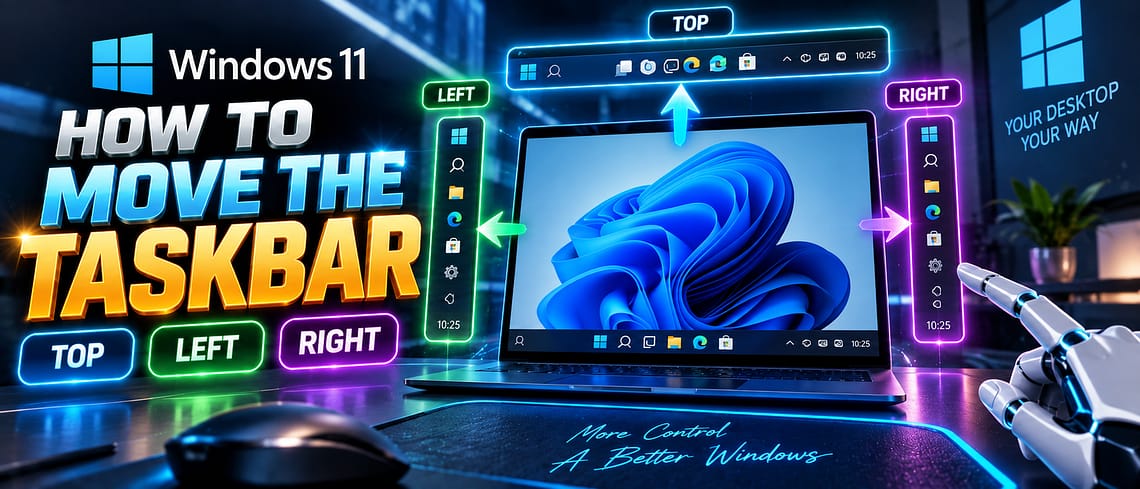
For five years, Windows 11 users have asked for one simple thing: the ability to move the taskbar off the bottom of the screen. Windows 10 allowed it. Windows 11 didn’t, until now. Microsoft’s September 2026 update finally brings back taskbar positioning, along with a smaller taskbar option and a resizable Start menu. If the update hasn’t reached your PC yet, or you can’t find the setting, this guide covers exactly where to look, what to do if it’s missing, and a safe fallback while you wait.
Quick Answer
Open Settings > Personalization > Taskbar > Taskbar behaviors, then use the new Taskbar position dropdown to choose Bottom, Top, Left, or Right. You can also turn on Taskbar size: Small in the same area. The feature is rolling out gradually with Windows 11’s August/September 2026 update, so if you don’t see it yet, skip to the “Taskbar position setting missing” section below.
Before You Start
You’ll need a PC running Windows 11 version 24H2 or 25H2 with update KB5120998 (OS Build 26200.9278 or 26100.9278) or a later cumulative update installed. Check your build under Settings > System > About. No Microsoft account changes, extra storage, or paid apps are required, and you don’t need to back anything up since this is a display setting, not a system change. Because Microsoft is rolling the feature out in stages, some fully updated PCs may still not have it yet.
Why Windows 11 didn’t let you move the taskbar until now
Windows 11 redesigned the taskbar around a fixed, centered layout when it launched in 2021, and Microsoft removed the position options that existed in Windows 10. According to Microsoft’s own Windows Insider Blog, this was one of the most requested changes from Windows Insiders, and the company rebuilt the underlying taskbar code before it could bring positioning back safely. The September 2026 update is the result: taskbar position, taskbar size, and Start menu size all become adjustable in one release.
How to move the taskbar to the top, left, or right
1. Open Taskbar settings
Right-click an empty area of the taskbar and select Taskbar settings, or go to Settings > Personalization > Taskbar.
2. Expand Taskbar behaviors
Scroll down and select Taskbar behaviors to expand it. Microsoft expanded this section by default in the update specifically to make the new options easier to find.
3. Choose a new Taskbar position
Select the Taskbar position dropdown and pick Bottom, Top, Left, or Right. The change applies immediately, no restart needed.
4. Optional: switch to a smaller taskbar
In the same Taskbar behaviors section, turn on Taskbar size: Small to reduce icon and bar height, which is useful on smaller laptop screens or ultrawide monitors where you want more room for windows.
Good to know: moving the taskbar to the left also shifts the notification and Quick Settings area to that same side, since they’re anchored to the taskbar. Test it for a day before committing if you rely on muscle memory to find the clock or notification icons.
How to resize the Start menu
The same update lets you resize Start independently of the taskbar. Go to Settings > Personalization > Start, then choose Start menu size and select Automatic, Small, or Large. You can also toggle the Pinned, Recommended, and All apps sections on or off individually from the same page.
Taskbar position setting missing? Try this
If you’ve checked Settings > Personalization > Taskbar > Taskbar behaviors and there’s no Taskbar position option, work through these in order:
- Check for updates. Go to Settings > Windows Update and install everything available, including optional updates. You need at least OS Build 26200.9278 (25H2) or 26100.9278 (24H2).
- Wait for the staged rollout. Microsoft is releasing this feature gradually rather than to every device at once, so a fully updated PC can still be a few days from getting it. There’s no official way to force it early.
- Restart your PC. Some Windows feature rollouts only activate fully after a restart, even if the update already installed.
- Check your edition and setup. The feature is built for standard desktop use; it isn’t available in Windows 11 Kiosk mode or on devices managed by a workplace policy that locks personalization settings.
If you’ve confirmed you’re on a current build and still don’t see the option after a week, it’s worth checking Microsoft’s official KB5120998 update page for the latest rollout status before trying anything else.
A temporary workaround while you wait
If you want the taskbar moved right now and don’t want to wait for the rollout, third-party tools like ExplorerPatcher and Windhawk can reposition the taskbar on older builds. Treat this as a temporary fix, not a first choice: these tools modify how Windows Explorer behaves, aren’t made by Microsoft, and can break after a future Windows update until their developers catch up. Only install them from their official GitHub pages, and uninstall them once the native setting appears on your PC, since running an unofficial shell modifier alongside the real feature isn’t necessary and can cause conflicts.
More Windows guides
Getting the September update to install is only the first step. If you want this feature before it reaches your PC through normal rollout, see our guide on how to get Windows 11 26H2 early. If a recent Windows update caused other problems on your PC, our story on Microsoft’s emergency fix for the Remote Desktop bug explains what to check. And if you’re updating more than one device this week, our guides on installing iOS 27 and the latest PS5 system update cover what’s new there too.
FAQs
Which Windows 11 versions support moving the taskbar?
Windows 11 24H2 and 25H2, once update KB5120998 (OS Build 26200.9278 or 26100.9278) or a later cumulative update is installed. Older versions of Windows 11, including 23H2, don’t get this feature.
Does moving the taskbar require a restart?
No. Changing the Taskbar position setting applies instantly. A restart is only worth trying if the setting itself isn’t showing up yet.
Can I move the taskbar to the top and keep it at the bottom on a second monitor?
No. The Taskbar position setting applies to all connected displays at once; Windows 11 doesn’t currently support a different taskbar position per monitor.
Will this feature come to Windows 11 Home and Pro equally?
Yes. The rollout isn’t limited by edition. It’s staged by device and account rather than by Windows 11 Home versus Pro, so timing can still vary between two PCs on the same edition.
Is ExplorerPatcher or Windhawk safe to use?
Both are widely used, open-source tools, but they’re unofficial and modify how File Explorer and the taskbar render. They can occasionally break after a Windows update until the developer releases a fix. Only download them from their official GitHub pages, and remove them once Microsoft’s native option reaches your PC.
Why did Microsoft remove taskbar positioning in the first place?
Windows 11 launched in 2021 with a redesigned, centered taskbar and dropped the position options Windows 10 had. Microsoft has said it needed to rebuild parts of the taskbar’s underlying code before it could safely bring the option back, which is why it took until this update to return.
Final advice
If you’ve been holding onto Windows 10 habits or just want your taskbar out of the way on a widescreen monitor, this is worth turning on the moment it appears on your PC. Start with Top or Left, live with it for a day, and switch back to Bottom from the same menu if it doesn’t feel right. Nothing about this setting is permanent or risky to try.


Leave a Comment