
Quick answer: to create an Instagram account, download the app, sign up with your phone number or email, pick a username and password, then turn on two-factor authentication straight away. Choose a personal, creator or business account based on how you’ll use it, and keep it private if you only want approved followers to see your posts.
Instagram looks simple from the outside. You download the app, pick a name, and start posting. But a lot of people only find out how their account really works after something goes wrong: they get locked out, a stranger takes over their profile, or they switch to a business account and suddenly their private posts are public.
This guide walks you through the whole thing in plain language. You’ll learn how to create an Instagram account the right way, which account type makes sense for you, how to lock it down against hackers, and what to do when you want a break or want out for good. Every menu name here was checked against Instagram’s own Help Center, so you can follow along on your phone as you read.

In this article 13 sections
- Quick Answer
- What Is an Instagram Account, Really?
- Before You Start
- How to Create an Instagram Account Step by Step
- Set Up Your Profile So People Can Actually Find You
- Personal, Creator or Business: Which Instagram Account Type Fits You?
- How to Switch to a Professional Account on Instagram
- How to Secure Your Instagram Account
- How to Recover a Hacked Instagram Account
- How to Manage Multiple Instagram Accounts on One Phone
- Deactivate vs Delete Your Instagram Account
- Frequently Asked Questions About Instagram Accounts
- Final Thoughts
Quick Answer
To create an Instagram account, open the app or go to instagram.com, tap Create new account, enter your email or mobile number, then set a password and username. Once you’re in, turn on two-factor authentication from Accounts Center > Password and security. Everything else, from switching account types to deleting your profile, is managed from that same Accounts Center or from Account type and tools in your settings.
What Is an Instagram Account, Really?
An Instagram account is your profile on the platform: your username, your photos and Reels, your followers and your messages. What trips people up is everything sitting behind it.
Instagram is owned by Meta, the company behind Facebook and WhatsApp. That’s why many settings now live inside Accounts Center, a control room for all your Meta accounts. Your password, security options and deletion tools sit there, even if you never touch Facebook.
Before You Start
- Age: Instagram generally requires users to be at least 13 years old, although some countries have a higher minimum age. Enter your correct date of birth when signing up.
- Contact details: an email address or mobile number that only you can access. This is how you’ll get back in if you forget your password, so don’t use a shared family inbox.
- The app: Instagram from the App Store (iPhone and iPad) or Google Play (Android). You can also sign up on a computer at instagram.com.
How to Create an Instagram Account Step by Step
You can sign up in the app or on the website, and the steps are almost identical. Here’s the app version, since that’s where most people start.
1. Open Instagram and tap Create new account
On the first screen, choose Create new account. If you already use Facebook on the same phone, you may see a Continue as [your name] option instead.
2. Enter your email address or mobile number
Type it in and tap Next, then enter the confirmation code Instagram sends. Double check your email spelling. One typo can leave you with an account you can’t recover.
3. Create a password
Pick something long that you don’t use anywhere else. A short phrase of four or five random words works well and is easier to remember than a jumble of symbols.
4. Choose your username
This is your @handle, and it’s how people find and tag you. You can change it later, but it’s easier to get it right now. Keep it short, easy to spell, and close to your real name or brand.
5. Agree to the terms
Read through Instagram’s terms and policies, then tap I agree. Your account is live.
Signing up with your Facebook account instead
If you go the Facebook route, you may be able to connect the profiles through Accounts Center and use supported cross-account sign-in options. Linking them does not automatically mean they share the same password, and profile syncing depends on your settings. It’s faster but ties the two together. To keep them separate, pick Continue without Facebook and use the email method above. You can link them later from Accounts Center.
Set Up Your Profile So People Can Actually Find You
A blank profile with a default avatar looks like a spam bot. Spend five minutes on the basics:
- Profile photo: a clear face shot for a personal account, a logo for a business.
- Name field: this is separate from your username and is searchable. Put your real name or what you’re known for here.
- Bio: one or two lines on who you are or what you post. Need ideas for captions too? Our list of 150+ captions for Instagram, WhatsApp and Facebook is a decent place to start.
- Privacy: personal accounts can be set to private, so only approved followers see your posts. You’ll find this toggle under Account privacy in settings.
Personal, Creator or Business: Which Instagram Account Type Fits You?
This is where a lot of beginners get confused, so here’s the short version. If you just want to share life with friends, stay personal. If you make content and want to grow an audience, go Creator. If you sell something or run a shop, go Business.
| Account type | Best for | Can be private? | Insights and pro tools |
|---|---|---|---|
| Personal | Friends, family, casual sharing | Yes | No |
| Creator | Influencers, artists, video makers, public figures | No, it becomes public | Yes, plus professional dashboard |
| Business | Shops, brands, local services, organizations | No, it becomes public | Yes, plus contact buttons and business details |
The category you pick during setup (say, “Artist” or “Restaurant”) is just a label on your profile. It doesn’t decide whether you end up with a Creator or Business account. You choose that separately.
Scheduling apps are another reason to switch, since most only connect to Creator or Business accounts.
How to Switch to a Professional Account on Instagram
One important warning first. If your personal account is private, switching to a professional account makes it public. Review your followers and public profile before switching. If you do not want a public profile, keep a personal account instead.
- Go to your profile and tap the menu icon (three lines) in the top right.
- Tap Account type and tools.
- Tap Switch to professional account.
- Pick the category that best describes what you do, then tap Done.
- Choose Creator or Business and follow the prompts.
Once you’re set up, you get the professional dashboard, where you can see insights and check whether you qualify for Instagram’s monetization tools. And if it doesn’t feel right, you can switch back to a personal account from the same Account type and tools menu at any time.
How to Secure Your Instagram Account
Most hacked accounts aren’t broken into by genius hackers. They fall to reused passwords, fake “copyright violation” messages and login links from strangers. A few habits stop most of it.
Use a strong password you don’t use anywhere else
When another site is breached, attackers try those leaked logins on Instagram. A unique password makes that trick fail. To change it, open Accounts Center > Password and security > Change password.
Turn on Instagram two-factor authentication
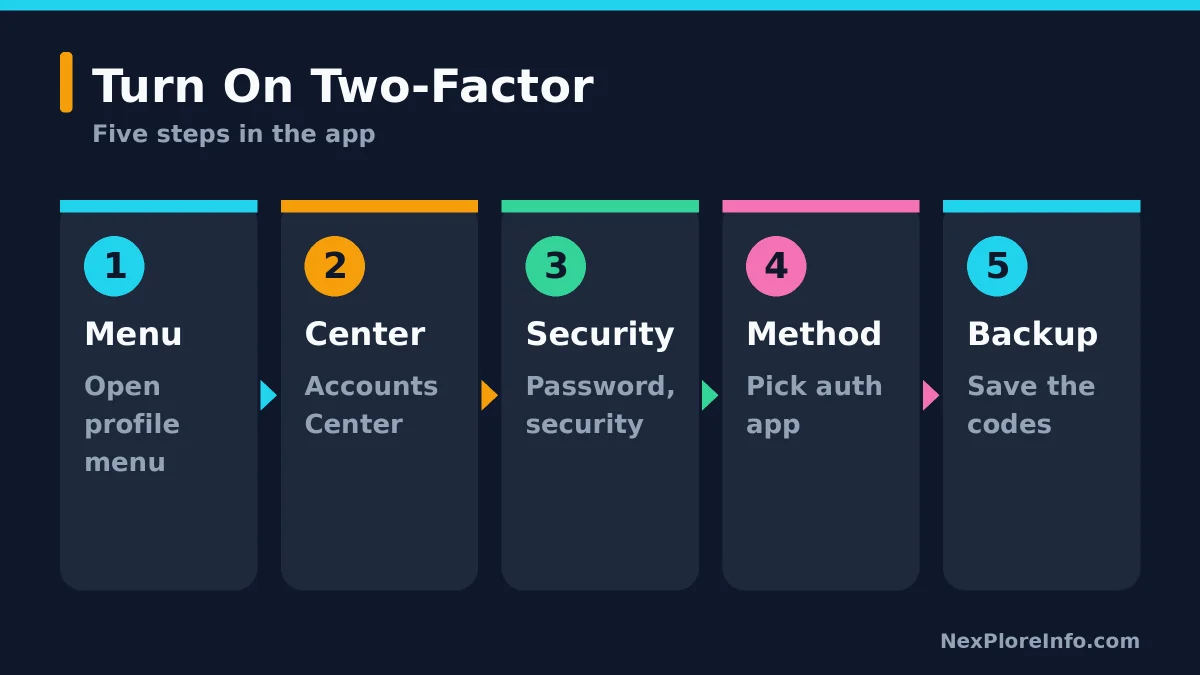
Two-factor authentication (2FA) means a password alone isn’t enough to get in. When someone logs in from a device Instagram doesn’t recognize, they also need a code. Here’s how to switch it on:
- Go to your profile and tap the menu icon.
- Tap Accounts Center, then Password and security.
- Tap Two-factor authentication and choose your Instagram account.
- Pick a method: an authentication app (recommended), text message, or WhatsApp.
- Follow the on-screen steps and save your backup codes somewhere safe.
Instagram recommends an authentication app such as Google Authenticator or Duo Mobile. It’s the safer pick anyway, because SMS codes can be stolen through SIM swap scams. One small catch: you can only set up the authentication app method in the Instagram app for iPhone or Android, not on the website. WhatsApp codes also need text message security switched on first.
Check where you’re logged in
Inside Password and security, open Where you’re logged in. If you spot a phone or location you don’t recognize, log it out right away and change your password. After you turn on 2FA, you can also see login requests and remove devices you marked as trusted.
Know what real Instagram messages look like
Instagram does not contact you about account security through Direct Messages. Real security emails come from addresses ending in @mail.instagram.com. A DM claiming your account will be deleted unless you “verify” through a link is a scam every time.
Protect the email behind your account
Your email is the master key, since anyone inside it can reset your Instagram password. Give it a strong password and 2FA, or better, a passkey. Our guide on how to set up passkeys on iPhone, Android and Windows shows how they work.
How to Recover a Hacked Instagram Account
If you can’t log in and think someone has taken over, act fast.
- Check your email first. When someone changes your account email, Instagram sends a message to your old address from security@mail.instagram.com. It usually includes a link to undo the change. Use it.
- Go to instagram.com/hacked. Open it in a browser and tell Instagram what happened: hacked account, forgotten password, lost access to 2FA, or a disabled account. It then guides you through getting a login code or verifying your identity.
- Secure everything once you’re back in. Change your password, turn on 2FA, log out of unknown devices, and remove any apps you don’t recognize from your account.
Ignore paid “recovery experts” in comments and ads. Real recovery only happens through Instagram’s own app and help pages.
How to Manage Multiple Instagram Accounts on One Phone
Running a personal profile next to a side business page? Instagram lets you add up to five accounts and switch between them without logging out.
- Go to your profile and tap the menu icon in the top right.
- Scroll down and tap Add account.
- Choose Log into existing account, or create a new one.
- To switch, tap your username at the top of your profile and pick the account you want.
Tip: give each account a different profile photo so you never post a weekend selfie on your company page by mistake. If you also use WhatsApp for business, you might like our walkthrough on setting up a WhatsApp username to hide your phone number.
Deactivate vs Delete Your Instagram Account
These sound alike but work very differently. Pick the wrong one and you could lose years of photos.
| Deactivate | Delete | |
|---|---|---|
| What it does | Hides your profile, posts and comments | Removes your profile, photos, videos, comments, likes and followers |
| Can you come back? | Yes, just log back in | Only within 30 days of the request |
| Best for | Taking a break | Leaving Instagram for good |
Download your data first
Before deleting anything, save a copy of your photos and messages. Go to Accounts Center > Your information and permissions > Export your information. Large accounts can take a while to package, so start this early.
How to deactivate or delete your Instagram account
- Go to your profile, tap the menu icon, then tap Accounts Center.
- Tap Personal details, then Account ownership and control.
- Tap Deactivation or deletion and pick your Instagram account.
- Choose Deactivate account or Delete account, then tap Continue and follow the prompts.
Warning: once 30 days pass after a deletion request, your account and everything in it is permanently gone. Instagram can’t bring it back, and it says the full deletion process may take up to 90 days on its servers. Also note that Instagram can’t delete an account on your behalf for security reasons, so you have to do it yourself while logged in.
Frequently Asked Questions About Instagram Accounts
Can I have a private Instagram business account?
No. Business and Creator profiles are professional accounts and are public. If you want to approve followers before they see your posts, keep a personal account and turn on Account privacy.
Can I make a second Instagram account without deleting the first?
Yes. Add another account from your profile menu, then switch between profiles in the Instagram app. Use a separate contact method when prompted and protect each login with a unique password and two-factor authentication.
Can I create an Instagram account without a phone number?
Yes. You can sign up with just an email address. Adding a phone number later is still a good idea, since it gives you another way to recover your account.
Is a Creator account better than a Business account?
Neither is better overall. Creator accounts suit people who make content and build a personal following. Business accounts suit brands and shops that need contact buttons and business details on their profile.
What is the safest two-factor method on Instagram?
An authentication app is the safest of the three options. It doesn’t rely on your phone number, so SIM swap scams can’t intercept your codes.
Does deleting Instagram delete my Facebook account?
No. They’re separate accounts, even when linked through Accounts Center. Deleting one leaves the other alone, though you may want to unlink them first.
How many Instagram accounts can I have?
You can add up to five accounts on one device and switch between them without logging out each time.
Final Thoughts
Getting an Instagram account running takes about five minutes. Keeping it safe takes about five more. Pick the account type that fits what you actually want to do, turn on two-factor authentication today rather than after a scare, and know where the delete button lives before you need it.
For the official word on any of these steps, Instagram’s own pages on creating an account, two-factor authentication, setting up a creator account, managing multiple accounts, deleting your account and recovering a hacked account are worth bookmarking.





Leave a Comment