
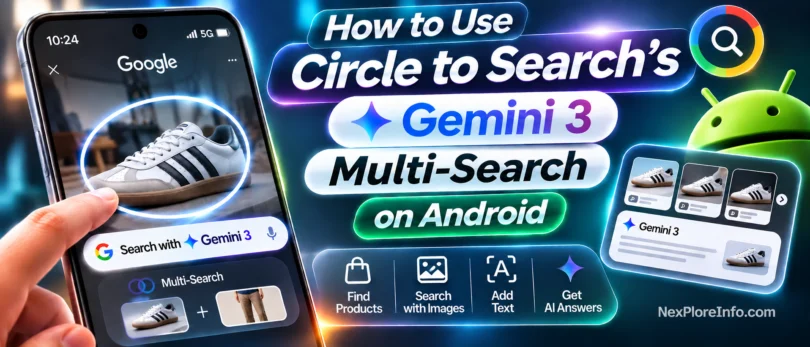
Circle to Search has been around on Android for a couple of years now, but it quietly got a lot smarter in February 2026. Google rebuilt the feature on Gemini 3, and the update lets you search several things in one photo at once instead of just one object at a time. If you’ve only ever used Circle to Search to look up a single item, you’re missing the better part of it.
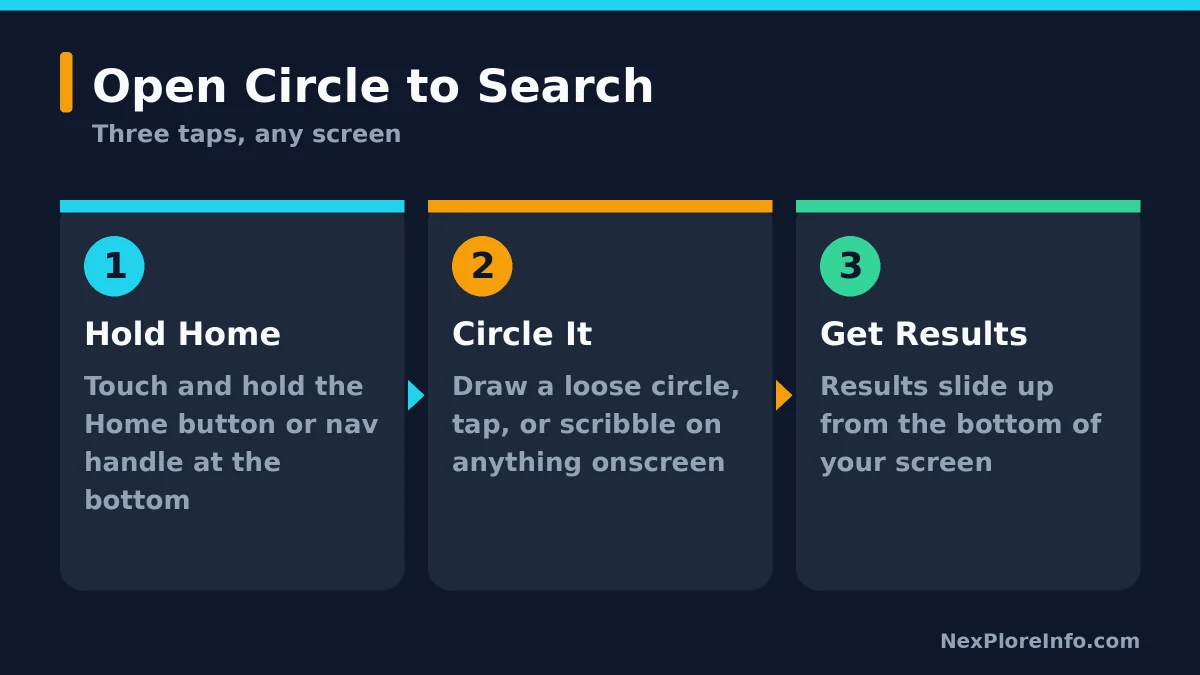
Quick answer: Touch and hold the Home button or navigation handle at the bottom of your screen to open Circle to Search, then circle, tap or scribble on whatever you want to search. The Gemini 3 update, rolling out since February 2026, adds multi object search (circle several things in one image and ask about all of them together) and outfit search with virtual try on, starting on the Samsung Galaxy S26 series and Google Pixel 10 and expanding to more Android phones since.
In this article 11 sections
- Before You Start
- What’s New in Circle to Search Since the Gemini 3 Update
- How to Open Circle to Search on Android
- How to Search Multiple Objects at Once
- How to Search an Outfit and Try It On
- Which Phones Support This Right Now
- Circle to Search Is Showing Up Beyond Your Phone
- How to Turn Circle to Search On or Off
- Common Problems and How to Fix Them
- Tips for Getting Better Results
- FAQs
Before You Start
- An Android phone with Circle to Search already available. Pixel 6 and later, and Galaxy phones and tablets running Android 14 with One UI 6.1 or newer, both qualify.
- An active internet connection, since every search runs through Google’s servers rather than on your phone.
- Google set as your phone’s default digital assistant app, which is usually the case out of the box.
What’s New in Circle to Search Since the Gemini 3 Update
The short version: the old Circle to Search only let you ask about one object at a time. The Gemini 3 version can look at a whole scene. Google announced the update on February 25, 2026, describing it as powered by “Gemini 3’s agentic planning, reasoning and tool capabilities,” meaning the model decides on its own which parts of your screen matter before it searches them.
| Feature | Original Circle to Search | Gemini 3 Update (since Feb 2026) |
|---|---|---|
| Objects per search | One at a time | Several objects in one image, searched together |
| Outfit search | Not available | Circle a whole outfit to split it into pieces |
| Virtual try on | Not available | Circle an outfit, then select Try On |
| Powering model | Earlier Google Search AI | Gemini 3’s planning and reasoning |
| Launch devices | Pixel 6 and later, Galaxy with One UI 6.1+ | Samsung Galaxy S26 series and Pixel 10 first, more devices since |
How to Open Circle to Search on Android
The gesture is the same whether you’re using the older version or the Gemini 3 update.
- Touch and hold the Home button or navigation handle at the bottom of your screen, from almost any app. On a Galaxy phone this is the Home icon on the navigation bar, and Samsung notes it also works with the S Pen on compatible models.
- Wait for the glow and search bar to appear. A gradient outline shows up around the edge of your screen, which means Circle to Search is active.
- Circle, highlight, scribble on, or tap whatever you want to search. You don’t need to be precise, a rough circle works fine.
- Check the results in the panel that slides up from the bottom. Tap it to expand to a full screen of results.
- Exit anytime by swiping down, using your phone’s back gesture, or tapping the X in the top corner.
Google’s own support page confirms this same gesture and adds that it also works for translating text as you scroll through web pages, messages, and social media.
How to Search Multiple Objects at Once
This is the main part of the Gemini 3 update, and it works inside the same gesture you already know.
- Open Circle to Search as usual by touching and holding the Home button or navigation handle.
- Circle more than one item in the same image or screen, instead of just one. Google’s own example is circling several fish in a photo.
- Type or say your question about all of them together, for example asking what the items are or how they relate to each other.
- Gemini 3 automatically figures out which parts of the image matter, crops them, and runs several searches behind the scenes before combining the results for you.
How to Search an Outfit and Try It On
Shopping is where the update is most noticeable. Instead of circling one shoe or one jacket, you can grab the whole look.
- Point Circle to Search at a full outfit, whether it’s a photo, a video frame, or something you see in an app.
- Tap, scribble on, or circle the entire outfit rather than a single piece.
- Google breaks it down into individual items, accessories, clothing, and shoes, searched all at once.
- Where virtual try on is already available for a product, you can select Try On right from the results to see how it would look on you.
Virtual try on is limited to places where Google’s try-on feature already works for shopping results, and to the Galaxy S26 series and Pixel 10 for now.
Which Phones Support This Right Now
Circle to Search itself is already common. The Gemini 3 multi object update is newer and more limited.
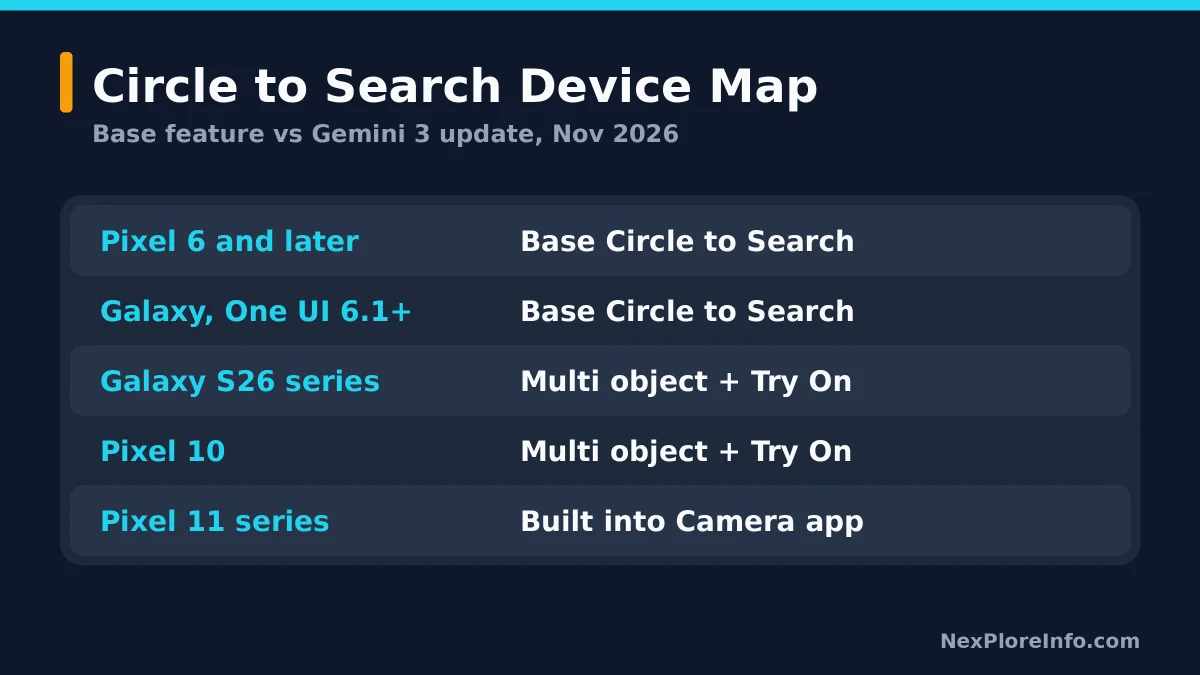
- Base Circle to Search: Google says it’s available on select Android phones including Pixel 6 and later. Samsung’s own support page lists it for Galaxy phones and tablets running Android 14 with One UI 6.1 or newer, and notes it also works with the S Pen on compatible models.
- Multi object search, outfit search, and try on: Google’s own announcement says these started on the Samsung Galaxy S26 series and the latest Pixel 10 devices, with the update “coming to more Android devices soon.”
- Pixel 11 series: also gets Circle to Search built directly into the Camera app, point your phone at something first, then touch and hold Home.
If your phone shows the classic single object version only, that’s normal for now. Google hasn’t given a full device list or a date for when every phone gets the multi object update, so there’s nothing to force on an unsupported phone yet.
Circle to Search Is Showing Up Beyond Your Phone
The multi object update isn’t staying inside the Gemini app or your phone’s home screen. Google has been folding Circle to Search style screen selection into more of its own products since the February 2026 rollout, which suggests this is becoming a standard way Google wants you to search, not a one-off phone feature.
One example: Google’s Gemini overlay on Android picked up a “Circle anything or ask about this screen” prompt of its own, essentially bringing Circle to Search style selection into the regular Gemini assistant rather than keeping it as a separate gesture. Reports have also pointed to Google testing a similar screen-selection option inside Chrome’s Ask Gemini feature on desktop, so circling something to search about it may not stay an Android-only trick for long. None of this is confirmed to have replaced the original Home button gesture, which still works exactly as described above.
How to Turn Circle to Search On or Off
It’s on by default, but you can check or disable it in a couple of taps.
- Most Android phones: open Settings, search for Circle to Search, tap it, then use the toggle.
- Pixel: open Settings, tap System, then turn Circle to Search off or back on.
- Galaxy: open Settings, tap Display, then Navigation bar, and turn off the switch next to Circle to Search.
- If it says unavailable: go to Settings, Apps, Choose default apps, Digital assistant app, and make sure Analyze on-screen images is turned on for Google.
Common Problems and How to Fix Them
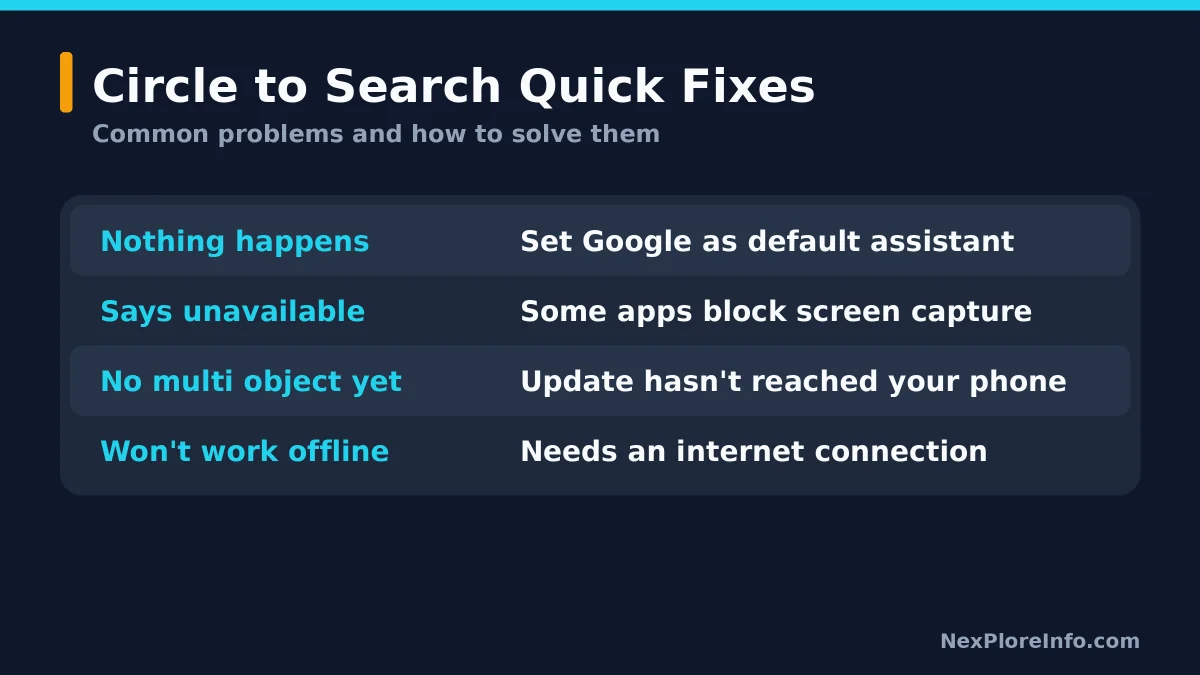
- Nothing happens when you hold the Home button. Check that Google is set as your default digital assistant app and that “Analyze on-screen images” is turned on for it.
- Circle to Search says it’s unavailable in an app. Some apps block screen capture for security or copyright reasons, mainly banking and some streaming apps, and Circle to Search won’t work inside those by design.
- You only get single object results, no multi object option. Your phone probably hasn’t received the Gemini 3 update yet. It launched on the Galaxy S26 series and Pixel 10, and Google says it’s still expanding to other devices.
- It needs an internet connection and won’t respond offline. That’s by design. Circle to Search sends your selection to Google’s servers to search, so it needs a working connection.
- The Home button gesture conflicts with something else. Make sure your Google app is updated to the latest version, since older versions can behave inconsistently with the gesture.
Tips for Getting Better Results
- Circle loosely, not perfectly. You don’t need to trace an exact outline. A rough circle around the right area works.
- Ask a real question for multi object search instead of just circling and saying nothing. Naming what you want to know helps Gemini 3 combine the right results.
- Use it inside apps, not just the home screen. Circle to Search works over social media, messages, and most web pages without switching away from what you’re doing.
- Try the translate option if you circle text in another language, it appears automatically in the search bar for web pages, messages, and social posts, though not for videos or GIFs.
If you’re curious about the AI model behind this update, our guide to using Gemini 4 Argon covers Google’s other Gemini release this year, and our look at Nano Banana Pro in the Gemini app explains the AI image model that shares some of the same underlying technology. If you’re deciding which phone to pick up, check our guides to the Samsung Galaxy S26 Ultra and the Google Pixel 11 Pro, both of which support these new Circle to Search features.
FAQs
What is Circle to Search?
Circle to Search is a Google feature on Android that lets you search anything on your screen by touching and holding the Home button, then circling, tapping, or scribbling on it, without switching apps.
What’s new with Circle to Search and Gemini 3?
Since February 2026, Circle to Search runs on Gemini 3, which lets you circle multiple objects in one image and search them together, deconstruct an outfit into individual pieces, and try on clothing virtually where that feature is available.
Which phones support the new Circle to Search features?
Google’s own announcement says the multi object update started on the Samsung Galaxy S26 series and the latest Pixel 10 devices, with more Android phones getting it over time. Standard Circle to Search already works on Pixel 6 and later and on Galaxy phones with One UI 6.1 or newer.
Why isn’t Circle to Search working on my phone?
Make sure Google is set as your default digital assistant with “Analyze on-screen images” turned on, and that your Google app is updated. Some apps also block it entirely for security or copyright reasons.
Can I turn off Circle to Search?
Yes. On Pixel, go to Settings, then System, and turn it off. On Galaxy, go to Settings, Display, Navigation bar, and turn off the Circle to Search switch. On most other Android phones, search for it directly in Settings.
Does Circle to Search work without internet?
No. It sends your selection to Google’s servers to run the search, so you need an active internet connection for it to work at all.



Leave a Comment