
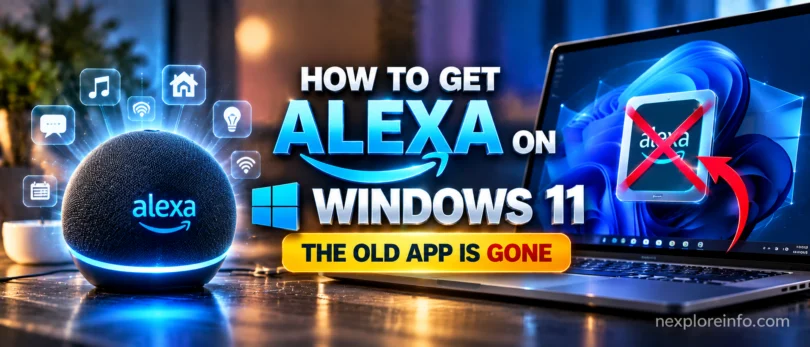
There is no official Alexa app download for Windows 11 in the Microsoft Store anymore. Amazon’s old Alexa for PC app was discontinued, but Windows users can still use Alexa through Alexa.com in a supported region. You can also install Alexa.com as a web app in Microsoft Edge or Google Chrome so it opens from the Start menu in its own window.
This guide explains what happened to the Alexa app for Windows 11, the official way to get Alexa on your PC in 2026, how to make it feel like a real desktop app, and which shortcuts you should avoid.
In this article 14 sections
- Is there an Alexa app for Windows 11?
- Before You Start
- What happened to the Alexa app for Windows 11?
- Can You Download the Alexa App for Windows 11?
- What Can Alexa.com Do on a Windows PC?
- How to get Alexa on Windows 11 with Alexa.com
- How to install Alexa as an app on Windows 11
- Is Alexa on Windows 11 free?
- Can I use Alexa on Windows 11 in the UAE?
- Other ways to use Alexa with your Windows PC
- Is it safe to download the old Alexa app from other websites?
- Alexa.com not working on Windows 11? Try these fixes
- Frequently Asked Questions
- Final Advice
Is there an Alexa app for Windows 11?
Amazon no longer offers the old Alexa for PC app in the Microsoft Store. If you are searching for an Alexa app for Windows 11 download, do not download an old installer from a third-party site. In supported countries, open Alexa.com in Edge or Chrome, sign in with your Amazon account, and optionally install the website as an app. In the U.S., Prime members get full Alexa+ at no extra cost, while non-Prime users can try the limited free Alexa+ chat experience.
Before You Start
- A Windows 11 PC with an up-to-date version of Microsoft Edge or Google Chrome
- An Amazon account (the same one linked to your Echo devices, if you have any)
- A stable internet connection
- An Amazon Prime membership for full, unlimited Alexa+ access (optional)
- About 5 minutes. Nothing on your PC is deleted or reset
What happened to the Alexa app for Windows 11?
Amazon launched Alexa for PC as a Microsoft Store app back in 2018. It let you talk to Alexa on your laptop, check your Echo devices, and control smart home gadgets. In 2023, Amazon pulled the app from the Microsoft Store. Amazon support staff confirmed on the official Amazon forums that new downloads are no longer possible, although people who already had it installed could keep using it for a while.
Two other routes also closed around the same time. Microsoft retired Cortana on Windows in 2023, which ended the old Alexa and Cortana pairing. Then Microsoft ended the Windows Subsystem for Android, the feature that let you run Android apps like the Alexa phone app on Windows 11. According to Microsoft’s official documentation, that support ended on March 5, 2025, and the Amazon Appstore was removed from the Microsoft Store.
So if a website tells you to search the Store, install the Amazon Appstore, or run an Android emulator to get Alexa, that advice is out of date.
Can You Download the Alexa App for Windows 11?
No current official Windows installer is available. Searches such as “Alexa app for PC,” “Alexa PC app download” and “Amazon Alexa for PC” often lead to old Microsoft Store references or third-party installer sites. The supported path in 2026 is Alexa.com where Alexa+ is available. Installing Alexa.com as a web app gives you a Start menu entry and a separate app-style window without downloading an outdated executable.
- Official Windows Store app: discontinued
- Official Alexa.com web access: available in supported Alexa+ regions
- Third-party APK/EXE downloads: not recommended
- Windows Subsystem for Android: no longer a supported route because Microsoft ended Amazon Appstore/WSA availability on March 5, 2025
What Can Alexa.com Do on a Windows PC?
Alexa.com is more than a basic chat window. Amazon says Alexa+ on the web can handle quick questions, planning and research, and it can connect with Alexa services such as calendars, shopping, smart-home controls and household information when those features are supported on your account. Conversations can also continue across Alexa-enabled devices, the Alexa app and the browser.
However, the browser experience is not identical to the old Windows app. Some voice-first, device-setup and region-specific features still work better through an Echo device or the Alexa mobile app.
How to get Alexa on Windows 11 with Alexa.com
In January 2026, Amazon introduced Alexa.com, bringing Alexa+ to a web browser. It is now the closest official replacement for the discontinued Windows desktop app where Alexa+ web access is supported. Because it runs in a modern browser, you do not need a special Windows installer.
1. Open your browser and go to Alexa.com
Launch Microsoft Edge or Google Chrome and type alexa.com in the address bar. You will see a chat screen that looks similar to ChatGPT or Gemini.
2. Sign in with your Amazon account
Click Sign in and use the same Amazon email and password you use for shopping and for your Echo devices. Using the same account matters, because it links your lists, reminders, calendars, and smart home devices to the web version.
3. Turn on Alexa+ if you are asked
Prime members may see a prompt to upgrade to Alexa+. Accept it to unlock the full experience. Amazon confirms that Prime members can start simply by logging into their Amazon account at Alexa.com. If you do not have Prime, you can still use the free chat version.
4. Start typing your requests
Type a question or task in the chat box, such as “What is on my calendar this week?” or “Add milk to my shopping list.” The web version is built mainly around typed chat. For hands-free voice control, keep using an Echo device or the Alexa app on your phone.
5. Check your devices and history in the sidebar
The left sidebar gives you quick access to your past chats, lists, reminders, and smart home controls. Conversations sync across devices, so a chat you start on your PC can continue later on your Echo or phone.
How to install Alexa as an app on Windows 11
You can make Alexa.com behave like a normal desktop app with its own window, taskbar icon, and Start menu entry. This is the closest thing to the old Alexa for PC app.
In Microsoft Edge
- Open alexa.com and sign in.
- Click the three-dot menu (Settings and more) in the top-right corner.
- Select Apps, then Install this site as an app.
- Name it “Alexa” and click Install.
- Choose whether to pin it to the taskbar, Start menu, or desktop.
In Google Chrome
- Open alexa.com and sign in.
- Click the three-dot menu in the top-right corner.
- Go to Cast, save, and share, then select Install page as app.
- Click Install.
Alexa now opens in its own window from the Start menu. If you like pinning your most-used tools, our guide on how to move the taskbar in Windows 11 can help you set up a cleaner desktop layout.
Is Alexa on Windows 11 free?
It depends on your plan. According to Amazon’s official Alexa+ announcement, there are three tiers in the USA:
| Plan | Price | What you get on Alexa.com |
|---|---|---|
| Alexa+ with Amazon Prime | Included with Prime | Full, unlimited Alexa+ on the web, app, and Echo devices for the whole household |
| Free Alexa+ chat | $0 | AED 0 | Text chat for quick answers, planning, and research, with usage limits |
| Alexa+ subscription (no Prime) | $19.99 | AED 73 per month | Full, unlimited Alexa+ across all your devices |
The AED figure is a currency conversion for reference only. Amazon sells this subscription in the USA.
Can I use Alexa on Windows 11 in the UAE?
Not on Alexa.com yet. Alexa+ and the Alexa.com web experience are currently aimed at the USA, and Amazon has not announced a UAE launch date. If you are in the UAE, the practical options are the regular Alexa app on your iPhone or Android phone and classic Alexa on your Echo devices. We cover the current rollout in more detail in our guide on how to set up Alexa+ on your Echo.
Other ways to use Alexa with your Windows PC
- Use your Echo as a PC speaker: Say “Alexa, pair” to your Echo, then on Windows 11 go to Settings > Bluetooth & devices > Add device > Bluetooth and select your Echo. Your PC audio will play through the speaker. Microsoft explains the pairing steps on its Bluetooth support page.
- Keep the Alexa phone app handy: For voice commands, routines, and device setup, the Alexa app on iPhone or Android is still the most complete option.
- Use Copilot for built-in voice help: If you mainly want a voice assistant on Windows 11, Microsoft Copilot is built in. Press the Copilot key or open the Copilot app from the Start menu.
Is it safe to download the old Alexa app from other websites?
We do not recommend it. Some sites offer old Alexa installer files or “offline installer” links. The app no longer gets updates from Amazon, it may not sign in or work properly, and files from unofficial sources can carry malware. Stick with Alexa.com, which is Amazon’s official and supported option.
The same rule applies to any account sign-in on your PC. If you want stronger protection for your Amazon login, see our guide on how to set up passkeys on iPhone, Android, and Windows.
Alexa.com not working on Windows 11? Try these fixes
- Check your account region: Alexa.com works with USA Amazon accounts. Accounts from other regions may see an error or a limited page.
- Update your browser: Open Edge or Chrome settings and install any pending updates, then restart the browser.
- Sign out and back in: This refreshes the link between the website and your Amazon account.
- Clear the site’s cookies: In your browser settings, clear cookies for alexa.com and amazon.com only. This signs you out of those sites but does not delete any of your Alexa data.
- Turn off extensions: Ad blockers and privacy extensions can block parts of the page. Try an InPrivate or Incognito window to test.
Frequently Asked Questions
Is there an official Alexa app for Windows 11?
No. Amazon removed Alexa for PC from the Microsoft Store in 2023, and there is no new desktop app. The official replacement is Alexa.com, which you can install as an app through Edge or Chrome.
Can I talk to Alexa by voice on my PC?
Alexa.com is built mainly for typed chat. For voice, use an Echo device or the Alexa app on your phone. You can also pair an Echo with your PC over Bluetooth and use it as a speaker.
Do I need Prime to use Alexa on my computer?
No. Anyone in the USA can try the free Alexa+ chat at Alexa.com, with usage limits. Prime members get full, unlimited Alexa+ at no extra cost, and non-Prime users can subscribe for $19.99 a month.
Can I control my smart home from Alexa.com?
Yes. Alexa.com includes smart home controls, so you can check and manage compatible lights, plugs, thermostats, and other devices linked to your Amazon account.
Can I run the Alexa Android app on Windows 11?
Not officially anymore. Microsoft ended support for the Windows Subsystem for Android on March 5, 2025, so the Amazon Appstore method no longer works.
Does Alexa.com work on Windows 10 too?
Yes. Because it runs in the browser, Alexa.com works on Windows 10, Windows 11, Mac, and Chromebook, as long as you use a modern browser.
Final Advice
Skip the old installer files and outdated Store tricks. Open Alexa.com in Edge or Chrome, sign in with your Amazon account, and install it as an app. You get a cleaner, safer, and more capable Alexa on your Windows 11 PC than the old app ever offered, and it stays in sync with your Echo devices and phone.



Leave a Comment