
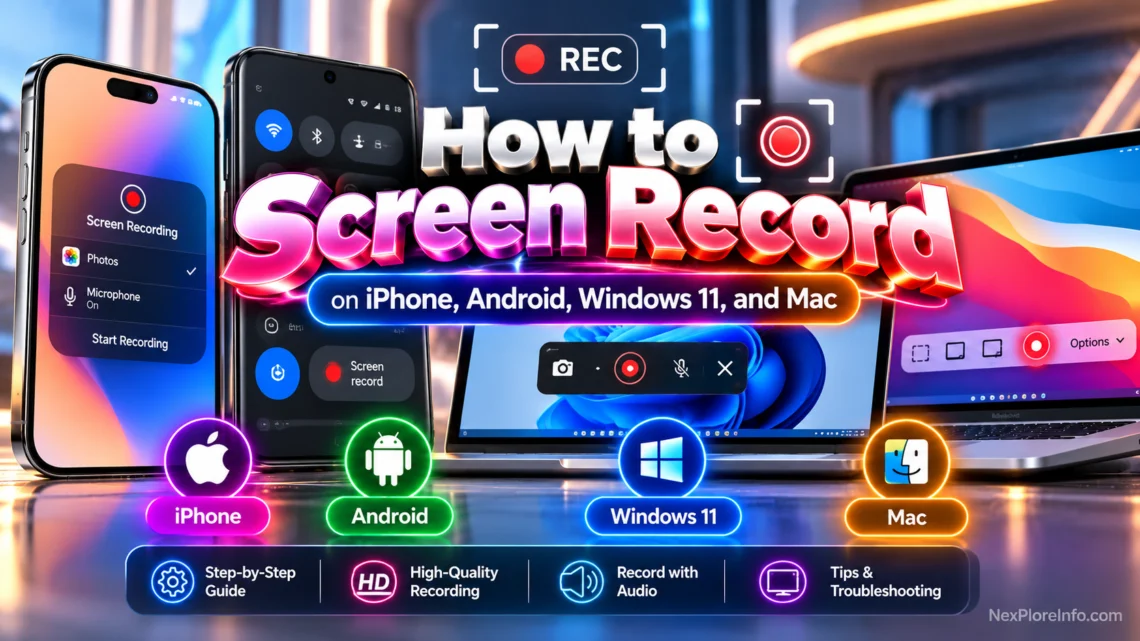
Recording your screen is one of the most useful tricks on any phone or computer. You can save a tutorial, capture a bug for tech support, record a game clip, or save a video call presentation, all without installing a single app. Every major platform now has a free, built-in screen recorder, and the steps are easier than most people think.
This guide covers how to screen record on iPhone, Android, Windows 11, and Mac using only the tools already on your device.
Quick Answer
On an iPhone, open Control Center and tap the Record button. On Android, pull down Quick Settings twice and tap the Screen record tile. On Windows 11, open Snipping Tool and select Record, or press Windows key + Alt + R for Xbox Game Bar if you need audio. On a Mac, press Shift + Command + 5 and choose a recording option. Every method is free and does not require installing any third party app.
Before You Start
- Make sure your device has enough free storage. Screen recordings are video files, and longer clips can take up several hundred megabytes.
- Close any apps or notifications you do not want visible, since most tools record exactly what is on screen, including notification banners.
- If you plan to record a call, meeting, or another person’s content, check that you have their consent first. Recording someone without permission can raise privacy and legal issues depending on where you live.
- Some streaming apps and banking apps block screen recording for copyright or security reasons, so a black screen during recording usually means the app itself is restricting it.
How to Screen Record on iPhone
Apple builds a screen recorder directly into Control Center on every iPhone running a modern version of iOS, so there is nothing to download. These steps are confirmed against Apple’s official screen recording support page.
1. Add Screen Recording to Control Center (first time only)
Open Settings, go to Control Center, and add Screen Recording if it is not already listed under included controls. If you have used it before, skip to step 2.
2. Start recording
Swipe down from the top right corner of the screen to open Control Center. Tap the grey Record button and wait for the three second countdown. Leave Control Center to begin recording.
3. Turn on microphone audio
To record your voice along with the screen, touch and hold the grey Record button in Control Center, tap the Microphone icon to turn it on, then tap Record again.
4. Stop and find your recording
Tap the red status bar at the top of the screen and select Stop, or open Control Center and tap the red Record button. The finished video saves automatically to the Photos app.
If you recently updated your iPhone and want to see what else changed, our guide on how to download and install iOS 27 covers the newest features worth trying.
How to Screen Record on Android
Google builds a screen recorder into Android’s Quick Settings panel on most phones, including Pixel, Samsung, and other brands running a recent Android version, as confirmed by Google’s official Android support documentation.
1. Open Quick Settings
Swipe down from the top of the screen twice to open the full Quick Settings panel.
2. Find the Screen record tile
Swipe sideways to find the Screen record tile. If it is missing, tap the edit icon (usually a pencil) and drag Screen record into your active tiles.
3. Choose your recording options
Tap the tile, then choose whether to record audio from the microphone, the device, or both, and whether to show screen touches. Tap Start and wait for the countdown.
4. Stop the recording
Swipe down from the top of the screen and tap the Screen recorder notification to stop. The video saves to your Photos or Gallery app.
Want to pull a clean audio-only clip off an Android recording afterward? Our guide on how to record audio on Android and transfer it to a computer shows how.
How to Screen Record on Windows 11
Windows 11 actually includes two separate screen recording tools, and which one you want depends on whether you need audio.
Method 1: Snipping Tool (screen recording with optional audio)
- Press Windows key + Shift + R, or open Snipping Tool from the Start menu and select Record.
- Select New, then drag to choose the area of the screen to record.
- Select Start to begin, and Stop when finished.
- Watch the clip, then select Save, or choose Edit in Clipchamp to trim it first.
Current Snipping Tool versions can capture microphone audio, and some versions also offer system-audio recording controls. Check the microphone and sound toggles before recording. Microsoft explains the recording process in Microsoft’s official Snipping Tool documentation.
Method 2: Xbox Game Bar (with microphone and system audio)
- Press Windows key + Alt + R to start recording the active window instantly.
- Press Windows key + Alt + M to mute or unmute your microphone during the recording.
- Press Windows key + Alt + R again to stop.
- To also capture system audio, open the Game Bar with Windows key + G, go to Settings > Capturing, and set audio capture to All.
Recordings from Xbox Game Bar save as MP4 files in your Videos folder, inside a Captures subfolder.
If either shortcut does not respond, confirm you are on a current Windows 11 build. Our Windows 11 26H2 download and install guide explains how to check your version and update.
How to Screen Record on Mac
macOS has had a built-in screen recorder for years, and Apple recently added more options like HDR capture on newer versions, as detailed on Apple’s official Mac screen recording support page.
1. Open the Screenshot toolbar
Press Shift + Command + 5 together. A small toolbar appears with both screenshot and video options.
2. Choose what to record
Select Record Entire Screen, Record Selected Window, or Record Selected Portion and drag to set the area.
3. Set your options first
Click Options in the toolbar before you start to choose a microphone, enable Show Mouse Clicks, set a countdown timer, and pick where the file saves. The Include System Audio option is available on macOS 27 or later, rather than on every older Mac. The default save location is your desktop.
4. Start, then stop, the recording
Click Record. To stop, click the Stop button in the menu bar, or press Command + Control + Esc. The finished file is named “Screen Recording” followed by the date and time.
Recording for a presentation on battery power? Our guide on setting a battery charge limit on your MacBook is worth checking too.
Why Does My Screen Recording Have No Sound?
This is the most common screen recording complaint on every platform, and it almost always comes down to one of these causes, starting with the easiest fix.
- Microphone audio was never turned on. On iPhone and Android, you must tap the microphone option before you tap Start, not after.
- You used the no audio tool by mistake. On Windows 11, current Snipping Tool versions can capture microphone audio, and some versions also offer system audio. Check its audio toggles or use Xbox Game Bar for game or app recording.
- System audio and microphone audio need separate toggles. On Windows, microphone and system-audio controls may be separate. On Mac, the built-in Include System Audio option requires macOS 27 or later; earlier versions can use microphone input but may need another tool for internal sound.
- The app you are recording is blocking audio capture. Some streaming and DRM-protected apps mute or black out their own audio and video during screen recording.
Tips for Better Screen Recordings
- Close unrelated notifications before you start, since most tools cannot edit them out afterward.
- Keep clips short. Shorter recordings are easier to edit, upload, and send over chat apps.
- If you plan to share a recording with other people, trim it first using Clipchamp on Windows, iMovie on Mac, or Google Photos’ built-in editor on Android.
- Check your available storage before a long recording session. A ten-minute screen recording can easily reach several hundred megabytes.
Frequently Asked Questions
How do I screen record with audio on iPhone?
Touch and hold the Record button in Control Center, tap the microphone icon to turn it on, then tap Record. This captures your voice along with the screen.
Can I screen record without installing a third party app?
Yes. iPhone, Android, Windows 11, and Mac all include a free screen recorder built into the operating system, so no extra app or download is required.
Why is there a black screen in my recording?
Some apps, including certain streaming services and banking apps, deliberately block screen recording for copyright or security reasons. This shows up as a black screen or a warning message instead of the app’s content.
How long can a screen recording be?
Most built-in tools do not set a strict time limit, but available storage space is the real limit. Longer recordings take up more space, so check your free storage before recording anything over a few minutes.
Where do screen recordings get saved?
On iPhone and Android, recordings save to the Photos or Gallery app. On Windows 11, Xbox Game Bar saves clips to Videos then Captures, while Snipping Tool asks you to choose a save location. On Mac, recordings save to the desktop by default unless you change the save location in Options.
Can I screen record a video call?
Technically yes, using the same built-in tools, but always get consent from everyone on the call first. Recording a meeting or call without permission can raise privacy concerns and, in some regions, legal issues.
Final Thoughts
You do not need a paid app or a complicated setup to record your screen. Every modern iPhone, Android phone, Windows 11 PC, and Mac already has a free tool built in, and most recordings take less than thirty seconds to set up once you know where to look. Bookmark this guide so you always know exactly where to tap or which keys to press, whatever device you are using.











Leave a Comment