
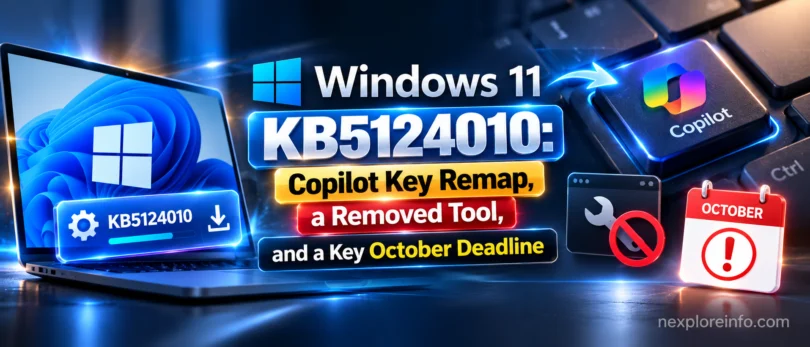
Quick answer: to remap the Copilot key in Windows 11, install update KB5124010 (or any later update), then open Settings > Personalization > Text input and change what the Copilot key does. You can now set it to work as Right Ctrl or to open the right-click context menu. The same update also removed the PC-to-PC Migration tool, added Emoji 17.0 and fixed several Bluetooth problems.
This guide shows how to remap the Copilot key step by step, everything else KB5124010 changed, how to install it safely, how to fix the known audio problem, and what the end of support for Windows 11 24H2 means for your PC.
In this article 11 sections
- KB5124010 at a Glance
- How to Remap the Copilot Key in Windows 11
- Other Ways to Open Copilot After Remapping
- Copilot Key Not Working After the Change?
- PC-to-PC Migration Tool Removed: What to Use Instead
- Other Changes in KB5124010
- How to Install KB5124010
- Known Issue: No Sound After the Update
- Windows 11 24H2 End of Support: What to Do
- More Windows 11 Tips
- Frequently Asked Questions
KB5124010 at a Glance
| Detail | What you need to know |
|---|---|
| Released | September 22, 2026 (optional update) |
| Windows versions | Windows 11 24H2, 25H2 and 26H2 |
| Builds | 26100.9550 (24H2), 26200.9550 (25H2), 26300.9550 (26H2) |
| Security fixes | None; those arrive with the monthly Patch Tuesday update |
| Main changes | Copilot key remap, PC-to-PC Migration removed, Emoji 17.0, Tips widget, Bluetooth fixes |
| Known issue | Audio can stop working on some PCs, especially with USB audio devices |
Source: Microsoft’s official KB5124010 release notes.
How to Remap the Copilot Key in Windows 11
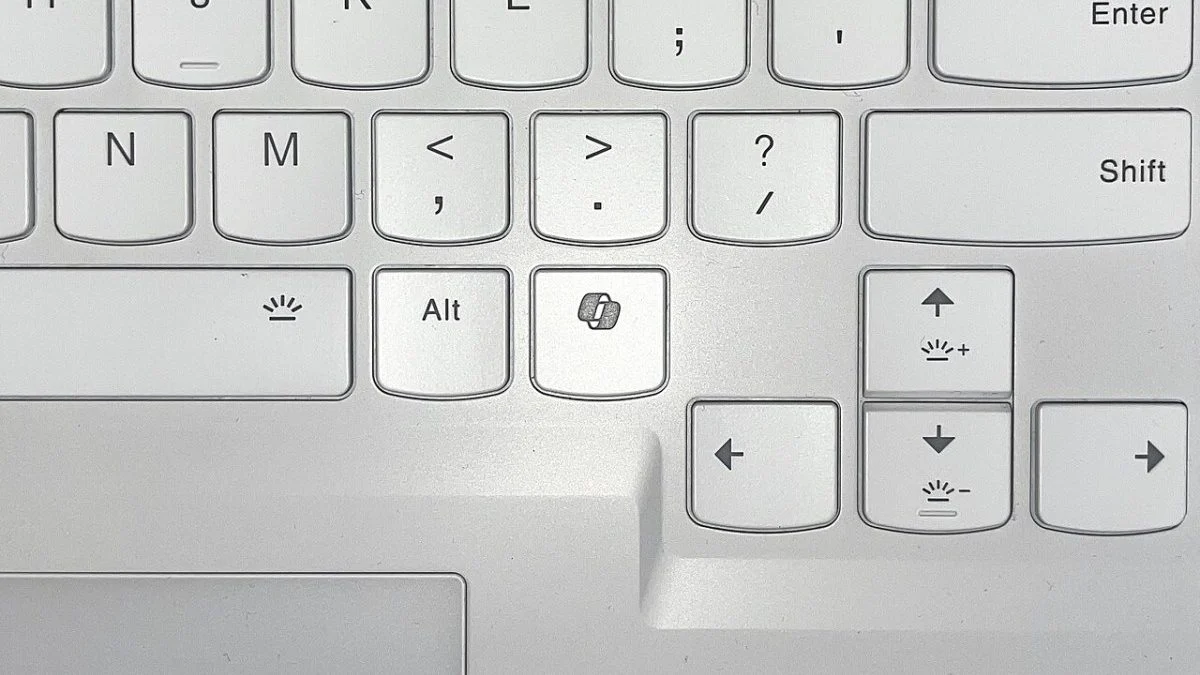
The Copilot key is the dedicated key Microsoft added to many new laptop keyboards, usually where the Right Ctrl key used to be. Until now, you could only make it open Copilot, Search or another app. After KB5124010, it can behave like a normal key again.
- Make sure KB5124010 or a later update is installed. Check in Settings > Windows Update > Update history.
- Open Settings with Windows + I.
- Go to Personalization, then Text input.
- Find the option to customize the Copilot key on your keyboard.
- Choose Right Ctrl to use it as a Control key, or the context menu option to make it work like a right-click.
- Press the key in any app to test the new behavior.
Which option should you choose?
- Right Ctrl: best if you use keyboard shortcuts such as Ctrl + C and Ctrl + V with your right hand, or if you play games that use Right Ctrl.
- Context menu: handy on laptops without a dedicated menu key, so you can open right-click options without touching the touchpad.
- Keep Copilot: if you use Microsoft’s AI assistant every day, leaving the key as it is remains the fastest way to open it.
According to Windows Latest, Microsoft plans to add a “Do nothing” option in a future update for people who want to disable the key completely.
Other Ways to Open Copilot After Remapping
Remapping the key does not remove Copilot from your PC. You can still open it whenever you need it:
- Windows + C: on many PCs, this shortcut opens Copilot.
- Taskbar or Start menu: pin the Copilot app to the taskbar, or type “Copilot” in Start search.
- Microsoft Edge: open Copilot from the Edge sidebar while you browse.
This way, you get your Right Ctrl or right-click key back without losing access to the AI assistant.
Copilot Key Not Working After the Change?
If the key does not behave the way you set it, try these fixes:
- Restart your PC after changing the setting.
- Check the update is installed. The new Right Ctrl and context menu options only appear after KB5124010 or a later update.
- Update your keyboard or laptop drivers from your PC maker’s support app, such as Dell, HP, Lenovo or ASUS.
- Check third-party key tools. Apps that remap keys, such as Microsoft PowerToys Keyboard Manager or gaming keyboard software, can override the Windows setting.
- External keyboards: some older external keyboards do not have a Copilot key, so the option has no effect on them.
PC-to-PC Migration Tool Removed: What to Use Instead
The bigger practical change in KB5124010 is the removal of the PC-to-PC Migration tool. It let you move files and settings from one Windows 11 PC to another over your local Wi-Fi or network, without uploading anything to the cloud.
Now you have two main options when you set up a new PC:
- OneDrive and Windows Backup: back up your folders, settings and app list to your Microsoft account, then restore them during setup on the new PC. The free OneDrive plan includes 5GB of storage, so you may need a paid plan for large photo libraries.
- Manual transfer with a USB drive or external SSD: copy your Documents, Desktop, Pictures and Downloads folders to an external drive, then copy them to the new PC after setup. This is free and keeps your files offline.
If you care about privacy or have slow internet, the USB method is the safest replacement for the old tool. If you want your settings and app list to follow you, OneDrive is easier.
Other Changes in KB5124010
- Emoji 17.0: new emoji including distorted face, fight cloud and hairy creature, plus refreshed designs for existing ones such as saluting face. Press Windows + period (.) to open the emoji panel.
- Tips widget: short guides to Windows features. Add it from the Widgets board under Add widgets, or to your lock screen from Settings > Personalization > Lock screen.
- Open apps maximized: a new accessibility setting in Settings > Accessibility > Visual effects that opens every app full size.
- Bluetooth fixes: better microphone compatibility with some Bluetooth headsets, more reliable LE Audio, a fix for a crash while streaming Bluetooth audio, and a volume control that now appears during calls.
- File Explorer improvements: the Home page remembers which sections you expanded, PDFs now show automatically in the side pane, and HTML files downloaded from the web show a safety warning first.
How to Install KB5124010
KB5124010 is an optional non-security update, so it does not install automatically. To install it:
- Open Settings > Windows Update.
- Click Check for updates.
- Under optional updates, find KB5124010 and click Download and install.
- Restart your PC when asked.
If Windows Update shows an error, you can download the offline installer from the Microsoft Update Catalog. Be aware that the offline package is about 5GB, while Windows Update usually downloads far less on an up-to-date PC.
Should you install it now?
If you want the Copilot key remap or the Bluetooth fixes right away, install it. If your PC works fine, you can skip it. Microsoft normally includes the changes from optional updates in the next monthly Patch Tuesday update, which installs automatically and also brings security fixes.
Known Issue: No Sound After the Update
Microsoft has confirmed that KB5124010 can break audio on some PCs, especially those using USB audio devices such as USB headsets, microphones and audio interfaces. If you lose sound after installing it:
- Unplug the USB audio device, restart the PC and plug it back in.
- Open Settings > System > Sound and check that the right output device is selected.
- Update the audio driver from your PC or device maker’s website.
- If sound still does not work, uninstall the update from Settings > Windows Update > Update history > Uninstall updates, then wait for Microsoft’s fix.
Updates sometimes cause problems like this. Earlier in September, Microsoft had to release an emergency patch after a Windows update broke Remote Desktop, as we explained in our Windows emergency update guide.
Windows 11 24H2 End of Support: What to Do
Microsoft ends support for Windows 11 24H2 Home and Pro editions on October 13, 2026, according to BleepingComputer. After that date, those PCs stop getting security updates. The PC keeps working, but it becomes more exposed to new threats over time. Enterprise and Education editions of 24H2 are not affected by this date.
How to check your Windows version
- Press Windows + R, type winver and press Enter.
- The window shows your version, such as 24H2 or 25H2, and your build number.
How to upgrade to Windows 11 25H2
- Back up your important files to OneDrive or an external drive.
- Open Settings > Windows Update and click Check for updates.
- When the Windows 11, version 25H2 feature update appears, click Download and install.
- Restart when asked. On most 24H2 PCs, the upgrade is free and keeps your files and apps.
If the 25H2 upgrade does not appear
- Install all pending updates first, restart, and check again. Feature updates often appear only after the latest monthly update is installed.
- Make sure you have at least 20GB of free storage on the system drive.
- Disconnect external drives and USB devices you do not need during the upgrade.
- Use the Windows 11 Installation Assistant from Microsoft’s official download page if Windows Update still does not offer it.
Businesses in the USA and UAE that manage many PCs should test the upgrade on a few machines first, especially if they use older accounting, point-of-sale or printer software.
Want to try the newest version? Our guide on how to install Windows 11 26H2 early explains the steps and the risks.
More Windows 11 Tips
Making Windows 11 work your way? Learn how to move the taskbar in Windows 11, fix a printer that shows offline, and set up passkeys for safer sign-ins. Curious about the AI behind the Copilot key? Read our explainer on what an AI agent is.
Frequently Asked Questions
How do I remap the Copilot key in Windows 11?
Install KB5124010 or a later update, then go to Settings > Personalization > Text input and choose Right Ctrl or the context menu for the Copilot key.
Can I disable the Copilot key completely?
Not yet. KB5124010 lets you remap it to Right Ctrl or the context menu. Windows Latest reports that Microsoft plans to add a “Do nothing” option later.
What is KB5124010?
An optional non-security update for Windows 11, released September 22, 2026. It adds the Copilot key remap, Emoji 17.0 and Bluetooth fixes, and removes the PC-to-PC Migration tool.
Does KB5124010 include security fixes?
No. Security fixes arrive through the regular monthly Patch Tuesday update.
Why was the PC-to-PC Migration tool removed?
Microsoft has not given a detailed reason. It now recommends OneDrive and Windows Backup for moving to a new PC. You can also copy files manually with a USB drive.
Is Windows 11 24H2 still supported?
Not for Home and Pro editions after October 13, 2026. Upgrade to Windows 11 25H2 through Windows Update to keep getting security updates.
How do I fix no sound after KB5124010?
Reconnect your USB audio device, check the output device in Sound settings, update your audio driver, or uninstall the update until Microsoft releases a fix.
Image credits: Photo: DigitalIceAge, Wikimedia Commons, CC BY 4.0. • Photo: MayankMurthy0606 / Wikimedia Commons, CC BY-SA 4.0




Leave a Comment