

By Nazia Atif | Tech Writer at NexPloreInfo
Sony has rolled out a new PS5 system software update, and it brings four genuinely useful changes rather than the usual “performance and stability” filler. You can now see exactly who is talking in a party chat, browse what everyone else is playing from a new home screen widget, switch off Bluetooth for tournament setups, and PS5 Pro owners get sharper visuals turned on automatically. None of these are buried in a confusing menu once you know where to look, and this guide walks through each one.
Quick Answer
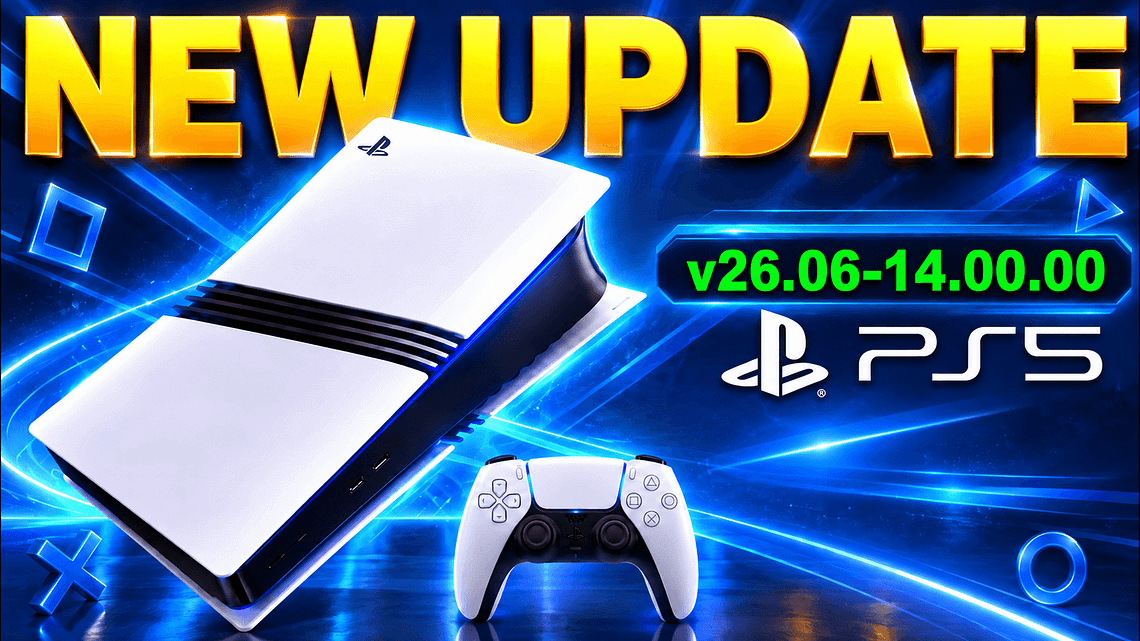
Update your PS5 through Settings > System > System Software > System Software Update and Settings. The new update (version 26.06-14.00.00) adds a voice chat speaker indicator, a Community Activity widget on the Welcome Hub, a full Bluetooth on/off switch, and automatic Enhanced PSSR image quality for PS5 Pro. Every feature below can be turned on or off in under a minute.
Before You Start
You’ll need a PS5 or PS5 Pro console connected to the internet, with enough free storage for a small system update (well under 2GB). You don’t need PS Plus for any of these four features, and no account changes are required. If you use Rest Mode or wireless accessories like a headset or controller charging dock, read the Bluetooth section below before switching anything off.
What’s new in this PS5 update
The update is rolling out gradually, so it may take a day or two to appear on every console even after you check manually. Here’s the full list of what changes:
- Voice chat speaker indicator, showing names on screen when someone talks
- A new Community Activity widget on the Welcome Hub
- A dedicated setting to fully disable Bluetooth
- Enhanced PSSR image quality, on by default for PS5 Pro
How to install the update
1. Open System Software settings
From the PS5 home screen, go to Settings > System > System Software.
2. Check for the update
Select System Software Update and Settings. If version 26.06-14.00.00 or later is available, you’ll see Update Available.
3. Install it
Choose Update System Software and let the console download and install it. Your PS5 will restart once it’s done. Sony’s official PS5 system software support page covers this same process if you want Sony’s own walkthrough.
If a download stalls, open the control center, go to the Downloads/Uploads section, select the update, and choose Try Again. Turning on automatic updates in this same menu means future updates like this install themselves overnight.
How to turn on the voice chat speaker indicator
This is the most requested feature of the four: a simple on-screen tag that shows who’s currently talking in a party or game voice chat, so you stop asking “wait, who said that?”
1. Open a voice chat
Join or start a party, then open the voice chat card from the control center (press the PS button to bring it up).
2. Go to More settings
Select More, then Display Who’s Speaking.
3. Turn on Display Names
Toggle Display Names to on. You can also change where the indicator appears on screen using the Position option, which is handy if it overlaps a game’s HUD.
How to use the new Community Activity widget
This widget lives on the Welcome Hub (the screen you land on when you turn on your PS5) and shows what other players are into right now.
1. Open the Welcome Hub
Go to the Welcome Hub tab from the PS5 home screen.
2. Find the Community Activity widget
Scroll to the new widget block. It has two tabs to flip between.
3. Switch between the two views
Trending Now shows ten multiplayer games or modes gaining popularity worldwide right now. Top 10 shows the ten most-played games in your region over the past week. Selecting a game from either list takes you straight to its store or library page.
How to turn off Bluetooth on PS5
This is aimed at esports venues and crowded local events where Bluetooth signals from other consoles and controllers interfere with each other, but anyone can use it.
1. Open Accessories settings
Go to Settings > Accessories > General > Advanced Settings.
2. Turn off Bluetooth
Select Turn Off Bluetooth.
Before you turn this off: disabling Bluetooth also disables Rest Mode and HDMI Device Link on your console. Wireless controllers connected over Bluetooth, wireless headsets, and Bluetooth keyboards will stop working until you switch it back on. Only use this if you’re specifically dealing with wireless interference, and remember where the toggle is so you can undo it afterward.
How Enhanced PSSR image quality works on PS5 Pro
PS5 Pro owners don’t need to do anything for this one. Enhanced PSSR Image Quality now switches on automatically after the update, sharpening visuals in supported games that use earlier versions of Sony’s PSSR upscaling technology.
If you’d rather compare it side by side or you notice visual artifacts in a specific game, you can turn it off under Settings > Screen and Video > Video Output > Enhance PSSR Image Quality. Standard PS5 and PS5 Digital Edition consoles don’t have this setting since PSSR is exclusive to the Pro model’s hardware.
PS5 update not showing up? Try this
If System Software Update and Settings still shows your old version after a day or two, check your internet connection first, since PS5 needs a stable connection to even detect new updates. Restarting the console from Settings > System > Power Saving > Restart PS5 often forces it to recheck. Because Sony rolls updates out in stages rather than to everyone at once, waiting an extra day is sometimes the only real fix, and there’s no way to force an early rollout on your specific console. Outlets including GamingBible confirmed the same staged rollout pattern for this update.
More PS5 and gaming guides
If you’re deciding what to play alongside this update, our PS5 vs Xbox Series X comparison is worth a look, and PC gamers can check our picks in The 7 Best Gaming Laptops of 2025. Updating other devices this week too? See our guides on how to get Windows 11 26H2 early and how to download and install iOS 27.
FAQs
What version number is this PS5 update?
It’s version 26.06-14.00.00. You can confirm your current version under Settings > System > System Software > System Information.
Do I need PS Plus to use these features?
No. The voice chat indicator, Community Activity widget, Bluetooth toggle, and PSSR enhancement are all available without a PlayStation Plus subscription.
Will turning off Bluetooth affect my DualSense controller?
Yes, if it’s connected wirelessly. A DualSense plugged in with a USB cable will keep working, but wireless controllers, headsets, and accessories lose their connection until you turn Bluetooth back on.
Is Enhanced PSSR available on the base PS5?
No. It only applies to PS5 Pro, since standard PSSR upscaling relies on the Pro’s extra graphics hardware.
Can I hide the Community Activity widget if I don’t want it?
The Welcome Hub layout is managed by Sony and currently doesn’t offer a per-widget hide option, though you can scroll past it to reach your games and apps faster.
My update download is stuck at a low percentage. What should I do?
Cancel the download from the control center’s Downloads/Uploads list, restart the console, and try again from Settings > System > System Software. A weak Wi-Fi signal is the most common cause, so switching to a wired connection usually speeds it up.
Final advice
None of these four changes require a deep dive into settings once you know where they live, and the voice chat indicator and Community Activity widget are worth turning on immediately if you play with friends. If you run tournaments or LAN events, keep the Bluetooth toggle in mind, but leave it alone for normal home use since it also switches off Rest Mode.


Leave a Comment