
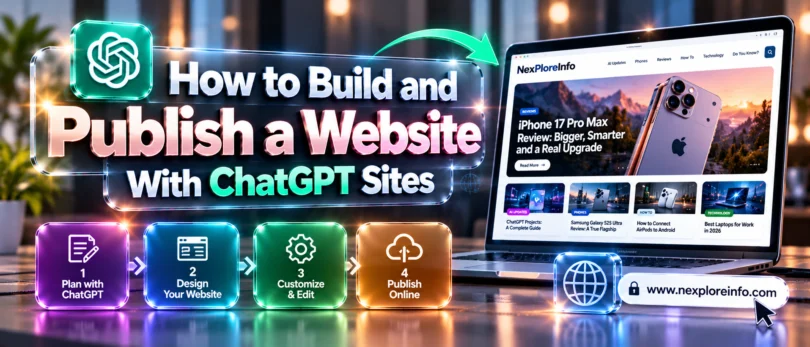
Want a working website without touching code or a hosting dashboard? ChatGPT Sites lets you describe a page, dashboard or small web app in chat, then publish it right there.
Quick answer: ChatGPT Sites is OpenAI’s built-in website builder and host. On a paid plan such as Plus, you open ChatGPT on the web, choose Work, describe your site using the word “website” or @Sites, look over the private preview, then publish. It is not included on Free or Go.
In this article 10 sections
- What Is ChatGPT Sites?
- Which Plans Include ChatGPT Sites, and Is It Free?
- How to Build and Publish a Website With ChatGPT Sites
- How to Write a Prompt That Gets a Better Site
- How to Control Who Can See Your ChatGPT Site
- How to Add a Custom Domain to ChatGPT Sites
- What ChatGPT Sites Can and Can’t Do
- ChatGPT Sites vs Other Ways to Build a Website
- Mistakes to Avoid
- FAQs
What Is ChatGPT Sites?
ChatGPT Sites builds, hosts and shares a website from a conversation. You say who the site is for and what visitors should do, ChatGPT builds it, and OpenAI hosts the result at an address you can send to anyone. OpenAI’s Sites documentation says it can host websites, web apps, games and existing compatible projects without a separate deployment setup.
It arrived in public beta on July 9, 2026, together with ChatGPT Work, according to this independent explainer. Since then OpenAI has added co-editing and editable site URLs, as its own What’s New page shows. New to the chatbot itself? Start with what ChatGPT is and how it works.
| Question | Short answer |
|---|---|
| What it does | Builds, hosts and shares a site from a chat prompt |
| Where to start | ChatGPT on the web: Work, or More, then Sites (chatgpt.com/sites) |
| Trigger words | Include “website” in your prompt, or type @Sites |
| Plans | Plus, Pro, Business, Enterprise and Edu. Not Free or Go |
| Storage | Database up to 10 GB per site. File storage has no fixed limit |
| Custom domain | Yes, if you already own the domain |
| Status | Still in beta, so limits and features keep changing |
Think of it as a fast way to ship one focused thing: a dashboard, a calculator, a project tracker, a resource hub or a one-page landing page.
Which Plans Include ChatGPT Sites, and Is It Free?
ChatGPT Sites is not free. You need a paid ChatGPT plan, and as of October 2026 OpenAI does not charge a separate fee for Sites during the beta.
| Plan | Sites access | Price per month (USD | AED) |
|---|---|---|
| Free | No | $0 | AED 0 |
| Go | No | $8 | AED 29 |
| Plus | Yes | $20 | AED 73 |
| Pro | Yes | Higher tier, see OpenAI’s pricing page |
| Business | Yes, on by default, depends on your role | $20 per user billed yearly | AED 73 |
| Enterprise | Yes, an admin must switch it on | Custom pricing |
Pricing checked: October 2026 on OpenAI’s pricing page and the explainer linked above. Prices change often, so confirm them before you upgrade for this feature. If you’re deciding between cheaper tiers, our ChatGPT Go vs Google AI Plus comparison breaks down what the lower plans give you.
The catch with “included” is the usage cap. OpenAI doesn’t publish the numbers, the limit is shared across every site on your account, and you only see it inside Sites. Once you hit it, you may be unable to create a new site, add storage or keep a busy site public, although you can still edit and manage the ones you already have. The Help Center says Plus and Pro have no fixed limit on the number of sites, but usage and storage limits still apply.
Availability also depends on plan, region and workspace. Sites was left out of the UK, the EEA and Switzerland at launch, and the same explainer says OpenAI later opened it to Plus and Pro accounts in Europe. Look for Sites in your own account to be sure.
How to Build and Publish a Website With ChatGPT Sites
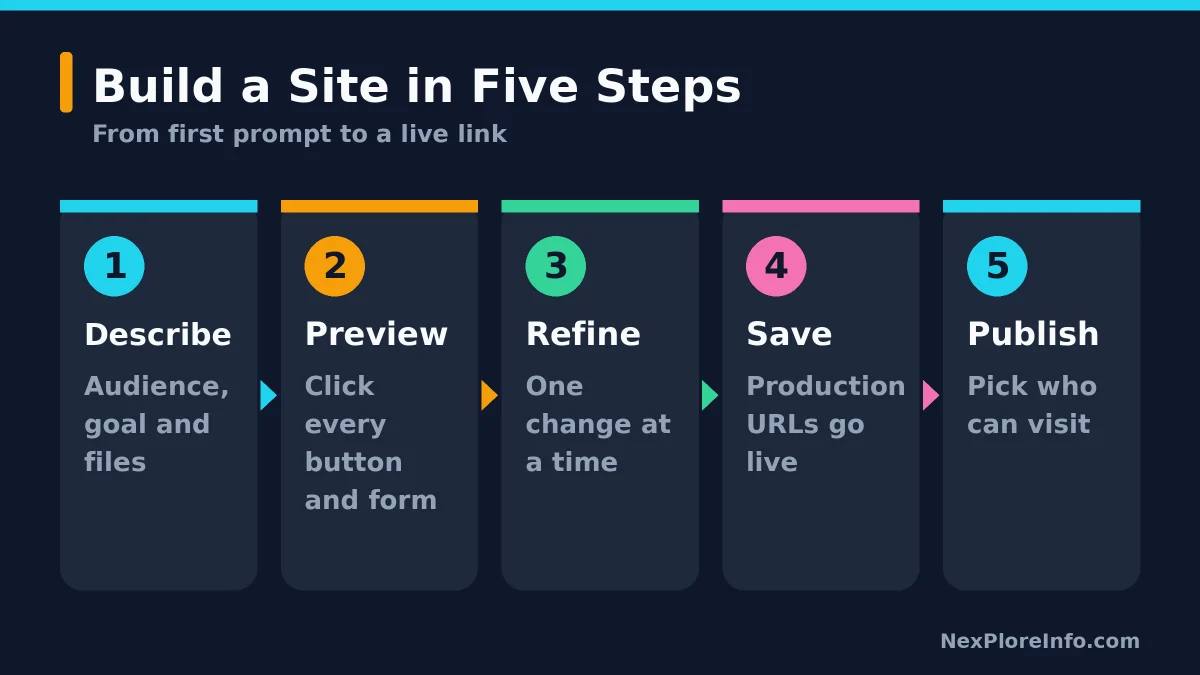
It takes five steps: describe it, look over the private preview, refine it, save a version and pick your audience. Use the newest ChatGPT app. The older ChatGPT Classic desktop app doesn’t have Sites.
Step 1: Open Work and describe the site
On the web, select Work, or go to More and then Sites. Or just go to chatgpt.com/sites. Start your prompt with the word “website” or type @Sites so ChatGPT knows to build a hosted site and not just write code in the chat.
Say who the site is for and what visitors should do, and attach any files, data or links it needs. Here’s a prompt that works as a starting point:
Build a one-page website for a beginner pottery class. Visitors should read the weekly schedule, see prices in a simple table and send a booking request. Use the attached price list. If any information is missing, tell me instead of inventing it. Make it easy to read on a phone.
Step 2: Look over the private preview
Your first version stays private, so poke around. Click every button and form, and compare the text against your source material. OpenAI also says to confirm how the site uses and saves information. If visitors can send a booking request, send one yourself and make sure it’s still there after a reload.
Step 3: Refine one change at a time
Select Edit in the preview and describe what to change. You can attach a screenshot or a reference site to show the look you want. OpenAI’s advice is to request one change at a time, say what must stay the same, and check the affected part after each change.
Step 4: Save a version before you publish
Here’s the step people skip. OpenAI’s guide to creating a site says every Sites deployment URL is a production deployment, with no staging copy. If you want to look at a change first, ask ChatGPT to save a version without deploying it.
Step 5: Choose who can visit and open the link as a visitor
Pick the audience, publish, then open the link in a private browser window so you see what a visitor sees. On a Mac, open deployed links in Chrome before sharing, since the in-app browser isn’t supported.
How to Write a Prompt That Gets a Better Site
Vague prompts get vague sites, because the builder fills every gap with a guess. New to prompting? Our 5-part AI prompt framework works here too. These tips come from OpenAI’s own guidance:
- Attach source material. Give it files, links, definitions and formulas, and ask it to flag missing information rather than make something up.
- Describe empty and error states. Say what a visitor sees when a search finds nothing or a form is half filled in, and how they can fix it.
- Show it what you like. Attach a screenshot or link, and name your brand colors and fonts.
- Spell out the phone layout. Ask for cards, tables and forms that fit a narrow screen without sideways scrolling.
- Label sample data. Mark placeholder records as examples, then replace them before you share the link.
- Say what should be saved. Visitor requests, uploads and progress need storage, so name what to keep and who can read or change it.
How to Control Who Can See Your ChatGPT Site
New sites are private by default, and you choose the audience when you publish. The options, as described in the independent explainer that summarizes OpenAI’s help pages, are:
- Only you and workspace admins
- Selected workspace members or groups
- Invited outside viewers, who can view but not edit
- Everyone in your workspace
- Anyone on the internet, only where public publishing is turned on
After your first publish, you can invite editors who can refine the site and publish updates. Only the owner controls access settings, the site’s name and URL, secrets and custom domains. Plus and Pro owners can also rename the ChatGPT-hosted address. The new name needs five or more characters, must start with a lowercase letter, and can only use lowercase letters, numbers and single hyphens. The old address redirects.
Quick security warning. Hiding a button on the page doesn’t protect the data behind it. If different people should see different records, ask for access rules that are enforced on the server, then log in with separate accounts to confirm each person sees only their own data.
Privacy is a separate question. On Free, Go, Plus and Pro, chats may be used to improve models if that setting is on. Our guide on turning off ChatGPT’s ad tracking covers the related privacy switches.
How to Add a Custom Domain to ChatGPT Sites
You can use your own web address as long as you already own it. ChatGPT Sites doesn’t sell or register domains. The setup takes four steps:
- Open the site’s settings and select Add domain.
- Enter the domain or subdomain you want to use.
- Copy the DNS records that Sites gives you and add them at your domain registrar.
- Wait a few minutes, then refresh the status inside Sites.
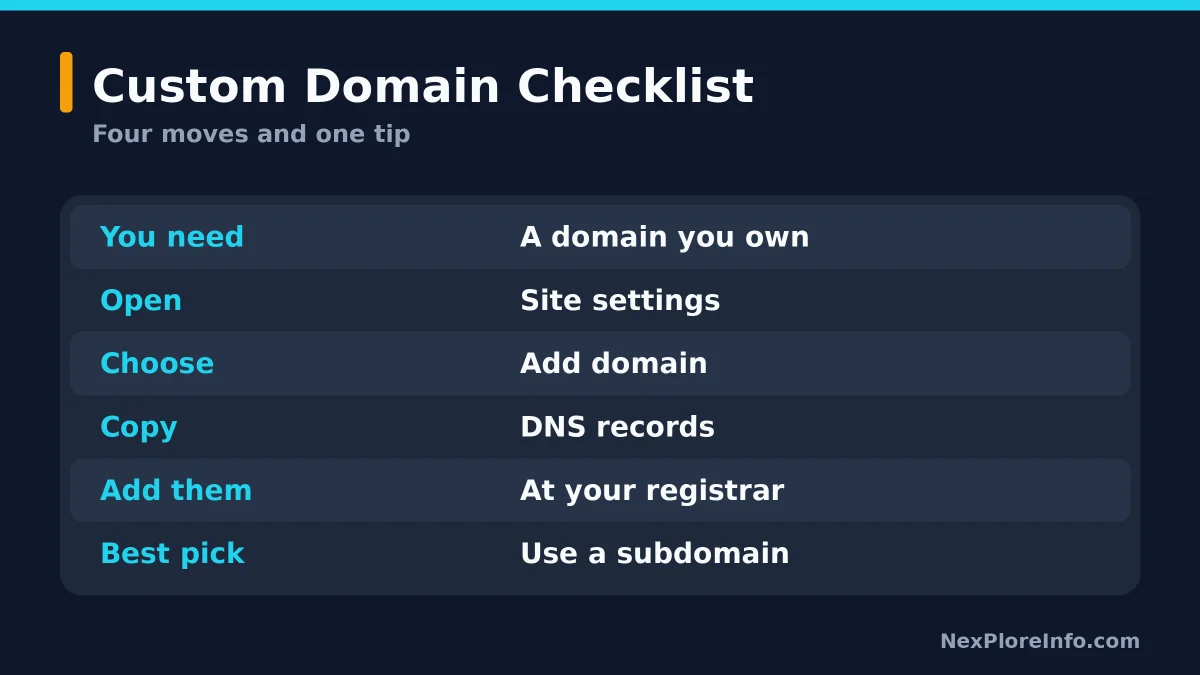
A subdomain such as class.yourdomain.com is the safer choice if your main domain already runs a live website, because it leaves that site alone. Only the site owner can manage custom domains, and renaming the ChatGPT-hosted address doesn’t affect a domain you’ve connected. Enterprise workspaces handle domains under their own admin rules, so ask your admin there.
What ChatGPT Sites Can and Can’t Do
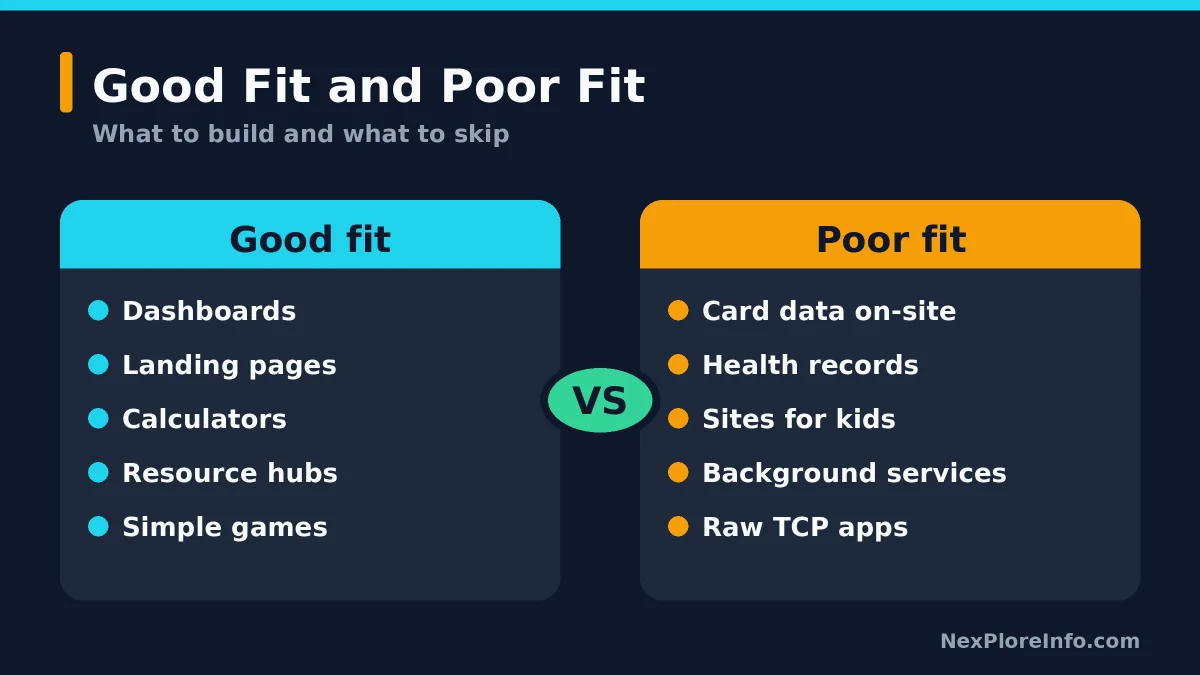
ChatGPT Sites suits small, focused projects. Payments, regulated data and anything that needs your own server? Look elsewhere.
| Works well for | Not a good fit for |
|---|---|
| Dashboards and trackers | Handling card details on the site itself |
| Landing pages and resource hubs | Health records or other protected health information |
| Calculators and simple games | Sites aimed at children under 13 |
| Pages that save visitor records | Raw TCP connections, private networks or background services |
| Visitor sign-in with ChatGPT | Malware, phishing or impersonation |
Payments are where the documentation gets muddy. OpenAI’s Help Center allows selling through a third-party payment processor, as long as that processor alone handles card data, while other financial transactions are off limits. The Sites documentation also warns against enabling financial transactions. If you sell anything, send buyers to a payment provider’s own checkout page and don’t collect card numbers yourself.
Live data is another limit. For personal plans, treat any data you upload as a snapshot, and check when the information was last updated. Business and Enterprise workspaces can build sites that use each visitor’s connected apps, but only after an admin approves it. Deleting a site is permanent, so double-check before you confirm.
ChatGPT Sites vs Other Ways to Build a Website
ChatGPT Sites wins on speed for small projects and loses on control. Here’s how it sits next to the usual alternatives:
| Option | Best for | Trade-off |
|---|---|---|
| ChatGPT Sites | A quick tool, dashboard or one-page site | Beta limits, tied to your ChatGPT account |
| A drag-and-drop website builder | A polished business site with templates | Monthly fee and more manual work |
| WordPress | A blog or a site that needs strong search visibility | Setup and upkeep |
Sites lives inside your ChatGPT account, and the same explainer notes there’s no public API for publishing from outside tools. So keep your own copy of the text, images and files you feed it. If you’re curious about how tools like this act on your behalf, our explainer on what an AI agent is covers the idea.
Mistakes to Avoid
- Publishing straight away. Every deployment is live. Save a version and look it over first.
- Putting private data on a public site. OpenAI says to use only material you have permission to share.
- Changing five things at once. When something breaks, you won’t know which edit caused it.
- Treating the limits as fixed. It’s a beta, so check OpenAI’s Help Center article for the current rules.
FAQs
What is ChatGPT Sites?
ChatGPT Sites is OpenAI’s feature for building, hosting and sharing a website or small web app from a ChatGPT conversation. You describe what you want, check a private preview, then publish it to a web address.
Is ChatGPT Sites free?
No. It needs a paid plan such as Plus, Pro, Business, Enterprise or Edu, and it isn’t available on Free or Go. As of October 2026 there’s no separate Sites fee during the beta, but usage limits apply.
How do I build a website with ChatGPT Sites?
Open ChatGPT on the web, select Work, and describe your site using the word “website” or @Sites. Look over the private preview, ask for changes, save a version, choose who can visit and publish.
Can I use my own domain with ChatGPT Sites?
Yes, if you already own the domain. Open the site’s settings, select Add domain, and add the DNS records Sites gives you at your registrar. Sites doesn’t sell domains, and a subdomain is the safer option if your main domain is already in use.
Can ChatGPT Sites take payments?
Only through a third-party payment processor that alone handles card data. Never collect card numbers on the site yourself. OpenAI’s documents differ slightly on financial transactions, so read the current policy before you sell anything.
Can other people edit my ChatGPT site?
Yes. After your first publish, the owner can invite editors who refine the site and publish updates. Editors can also read the site’s live database data, while the owner keeps control of sharing, the URL and domain settings.





Leave a Comment