
How to run AI locally is one of those skills that sounds technical and turns out to be about ten minutes of work. You install one free app, pull a model, and chat. No account, no subscription, and your prompts stay on your own machine. This guide is for beginners on Windows, Mac or Linux who want a private, free chatbot they control. I’ll show the exact steps, the commands, and what your hardware can realistically handle.
Quick Answer: How to Run AI Locally
What is Ollama? Ollama runs downloadable AI models on Windows and Mac computers. This guide explains how to run Ollama on Windows and how to set it up on a Mac. Note that Ollama cloud models run remotely and are not offline; choose a locally downloaded model if you need offline use.
Install Ollama, open a terminal, and type ollama run gemma4:e2b. Ollama downloads the model the first time, then opens a chat right in the terminal. Type /bye to leave. Running models on your own hardware is free and unlimited, according to Ollama’s official pricing page.
What Does “Running AI Locally” Actually Mean?
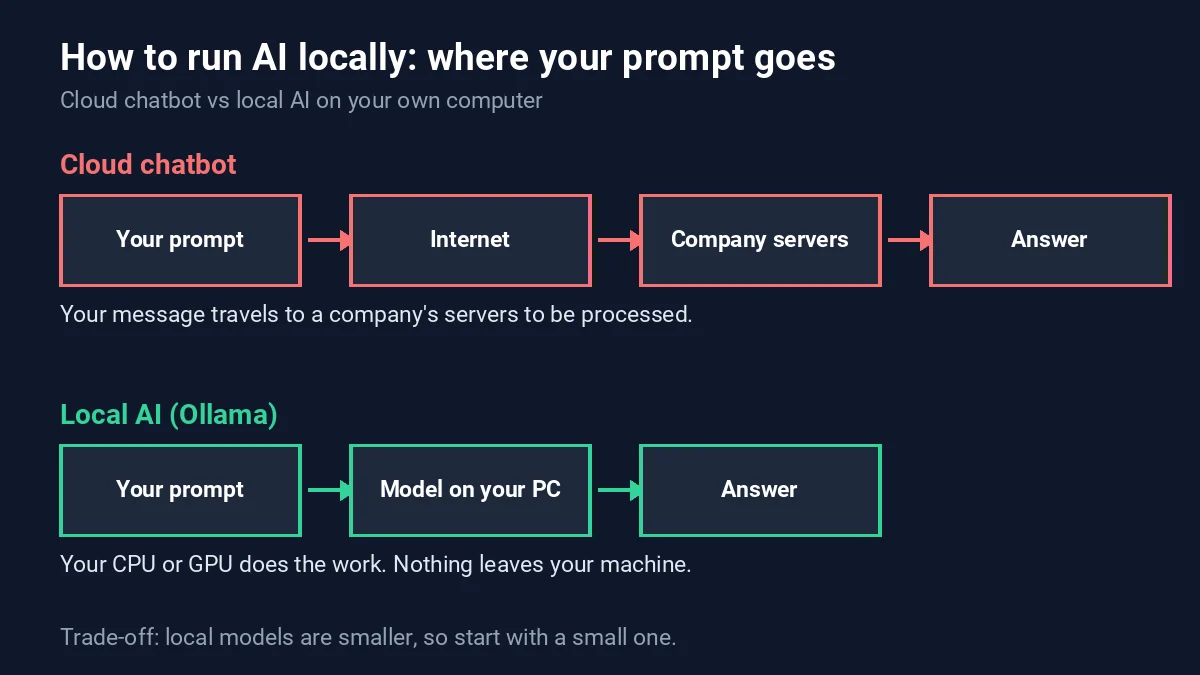
When you use ChatGPT or Claude, your message travels to a company’s servers, gets processed there, and the answer comes back. A local model flips that. The AI file sits on your computer, and your CPU or graphics card does the thinking. Ollama’s own FAQ says that with local models, Ollama doesn’t see your prompts or data.
Why bother? A few honest reasons. Privacy for sensitive notes or client files. Zero per-message cost. It works offline once the model is downloaded. And it’s a great way to understand how these tools work. If you’re new to the vocabulary, our guides on the context window in AI and AI hallucinations help, because local models have both.
The trade-off is plain: a model that fits on a laptop is smaller than the giant models behind the big paid chatbots. It won’t match them on hard reasoning. For drafting, summarizing, brainstorming and quick coding questions, it’s often plenty.
What You Need Before You Start
Check your system against Ollama’s official documentation:
- Windows: Windows 10 22H2 or newer. NVIDIA cards need driver 551.61 or newer, and AMD Radeon cards are supported through ROCm v7 or Vulkan. The install itself needs at least 4GB of disk space and no admin rights, per the Windows docs.
- Mac: macOS Sonoma (v14) or newer. Apple M-series Macs use both CPU and GPU. Intel Macs run on CPU only, per the macOS docs.
- Linux: one install command from the official download page.
You also need free disk space for the models themselves. Models often take tens to hundreds of GB if you collect several, so don’t download ten on a nearly full drive.
Ollama System Requirements: RAM, Storage, CPU and GPU
Ollama’s Windows application requires Windows 10 22H2 or newer and at least 4GB of disk space for the application, plus storage for model files. Model RAM and VRAM needs depend on model size, quantization and context length. The Gemma 4 tags page shows several downloadable sizes for gemma4:e2b; check the variant before downloading and keep extra space available. Ollama also supports CPU inference, although compatible GPU acceleration is usually faster.
An LLM, or large language model, is the type of AI behind chatbots. The bigger the model, the more memory it wants. Ollama’s quickstart uses Gemma 4 E2B as its example and says it’s about a 7.2GB download, with 8GB of VRAM or unified memory recommended. VRAM is your graphics card’s memory. Unified memory is the shared memory on Apple Silicon Macs.
The diagram below shows the main idea: your prompt stays on your machine. For model sizes, see the download sizes listed in the Ollama Gemma 4 library page. Each step up roughly means a bigger download and more memory to hold it.
| Model tag | Download size | Context window | Input |
|---|---|---|---|
| gemma4:e2b | 4.6GB to 7.5GB | 128K | Text, image |
| gemma4:12b | 7.7GB to 8.0GB | 256K | Text, image |
| gemma4:26b | 16GB to 19GB | 256K | Text, image |
| gemma4:31b | 19GB to 20GB | 256K | Text, image |
Sizes checked: October 2026. My advice: start with the smallest tag. If it runs smoothly, step up. If your machine crawls, you’ve lost a few minutes, not a weekend.
How to Install and Run Your First Local Model
Step 1: Install Ollama
Go to the Ollama download page. On Mac, download the installer and drag the app to Applications. On Windows, run the installer. On Linux or Mac, the page also lists a one-line terminal install command. Ollama runs quietly in the background afterward.
Step 2: Open a terminal
On Windows use PowerShell or Command Prompt. On Mac open Terminal. Type ollama --version. If you see a version number, the install worked.
Step 3: Download and start a model
Type this:
ollama run gemma4:e2b
The first run downloads the model, so give it a few minutes depending on your connection. When the prompt appears, ask something. Try: “Explain what a context window is like I’m twelve.” Type /bye when you’re done.
Step 4: Learn the four commands you’ll use daily
| Command | What it does |
|---|---|
ollama pull gemma4:e2b | Downloads a model without starting a chat |
ollama run gemma4:e2b | Starts a chat, downloading first if needed |
ollama list | Shows the models you’ve installed |
ollama rm model_name | Deletes a model to free disk space |
The pull and run commands come straight from Ollama’s quickstart. The list and remove commands are shown in an independent freeCodeCamp walkthrough of the same tool.
Can You Run AI Locally Without a GPU?
Yes, with limits. Ollama runs on CPU as well as GPU, and the freeCodeCamp guide points beginners to small models for ordinary laptops. Answers come slower on CPU, so stick to the smaller tags. To see what your machine is really using, run ollama ps. The PROCESSOR column tells you whether the model is on 100% GPU, 100% CPU, or split between the two, per Ollama’s FAQ.
Tips for Better Results
- Close heavy apps first. Browsers with forty tabs eat the memory your model needs.
- Know the defaults. Ollama’s default context length is 4,096 tokens, so very long documents get cut off unless you raise it with the
OLLAMA_CONTEXT_LENGTHsetting. - Models unload on their own. They stay in memory for 5 minutes by default. Run
ollama stopfollowed by the model name to free memory sooner. - Move model storage if your drive is tight. Set the
OLLAMA_MODELSenvironment variable to another folder. - Prompt clearly. Small models need clear instructions more than big ones do. Our 5-part prompt framework works fine here.
Ollama Windows Download and Troubleshooting
To install Ollama on Windows, use the official Ollama Windows download instead of unofficial installers. If you are wondering how to open Command Prompt, press the Windows key, type cmd, and select Command Prompt. To check how to check if I have Ollama installed, run ollama --version. If the terminal cannot find the command, restart the terminal after installing and check whether Ollama is running.
For readers asking how to use Ollama on Windows or how to start Ollama, open a terminal and use ollama run gemma4:e2b to download and chat with a smaller local model. The unqualified gemma4 tag may select a larger model, so check model size before downloading. You can manage Ollama models with ollama list to see downloads and ollama rm MODEL_NAME to delete one. Before using a model, verify its size and your device’s available storage and RAM. Windows installation and model-path information is documented in the official Windows guide.
Ollama on Mac and Other Local AI Alternatives
For how to download Ollama on Mac, use the official Ollama download page and choose macOS. Ollama also has a desktop app, so you do not need to use only the terminal. If you are researching LM Studio vs Ollama, both can run local AI models; compare the graphical interface, model support and API needs before choosing. For this step-by-step guide, Ollama’s CLI and app provide a simple starting point. See the official CLI reference for more commands.
Common Mistakes
- Starting with the biggest model because it sounds best. It often won’t fit in memory, and it’ll feel painfully slow.
- Assuming local means always right. These models still make things up.
- Changing
OLLAMA_HOSTwithout thinking. By default Ollama listens only on your own machine (127.0.0.1, port 11434). Setting it to 0.0.0.0 opens it to your network. - Forgetting that cloud models are a different thing. Ollama also offers cloud-hosted models, which do process your prompts on Ollama’s servers. You can turn those features off with
OLLAMA_NO_CLOUD=1.
Is Running AI Locally Really Free?
The software and local models cost nothing. Ollama’s optional cloud plans are a separate upsell. Pricing checked: October 2026.
| Plan | Price (USD | AED) | What you get |
|---|---|---|
| Free | $0 | AED 0 | Local models, starter cloud credits, 1 concurrent request |
| Pro | $20 per month | AED 73 (or $200 per year | AED 735) | $60 monthly usage credits, larger cloud models, 3 concurrent requests |
| Max | $100 per month | AED 367 | $300 monthly usage credits, 10 concurrent requests |
AED figures are converted at the fixed 3.6725 dollar peg. Most beginners never need more than Free. Only the cloud models use credits, and the Free plan’s local models are always unlimited, per the pricing FAQ.
Local AI vs Cloud Chatbots: Which Should You Use?
Use local when privacy, offline access or zero cost matter most. Use a cloud chatbot when you need the strongest reasoning, huge context or live web access. Plenty of people do both. If you want to see what the big names offer, read our explainers on ChatGPT and Claude. If coding is your goal, our best AI coding tools guide compares the hosted options, and Ollama’s quickstart even shows how to launch coding agents with ollama launch. And if privacy is what drew you here, see how to turn off ChatGPT’s ad tracking.
FAQs
Is it safe to run AI locally?
Yes, with sensible habits. Local models don’t send your prompts to Ollama, per its FAQ. Download models from the official Ollama library, and leave the network setting at its default.
How do I run an LLM on my own computer for free?
Install Ollama, then run ollama run gemma4:e2b. The app and local models are free.
Does running AI locally work offline?
Yes. After the model is downloaded, chatting needs no internet connection. Downloading a model does.
How much storage do local AI models take?
The Gemma 4 tags above range from about 4.6GB to 20GB each. The Ollama install needs at least 4GB on Windows.
Can I run AI locally on a Mac?
Yes. You need macOS Sonoma (v14) or newer. Apple M-series Macs get CPU and GPU support, while Intel Macs are CPU-only.
Where does Ollama store downloaded models?
On Windows in C:Users%username%.ollamamodels, on macOS in ~/.ollama/models, and on Linux in /usr/share/ollama/.ollama/models.












Leave a Comment