
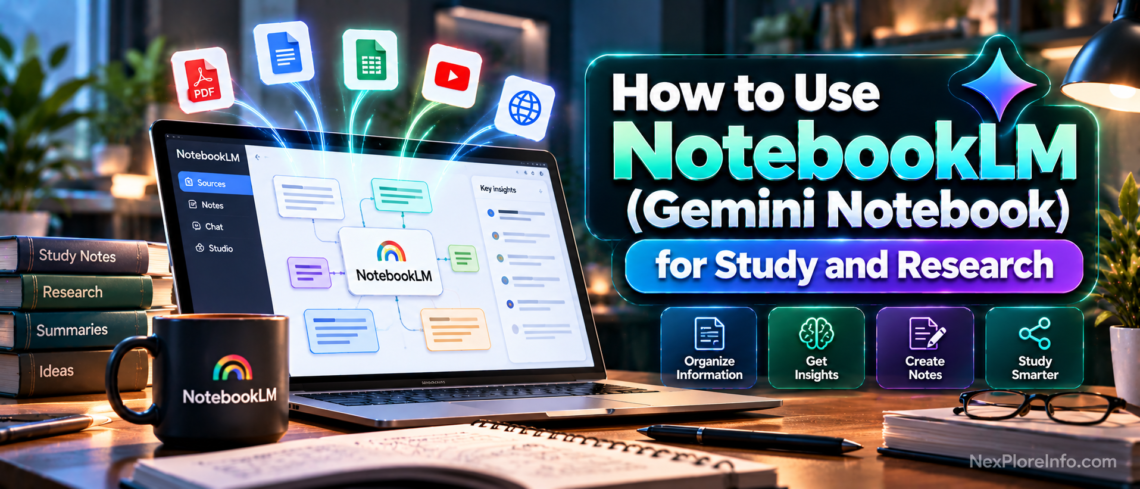
NotebookLM is now Gemini Notebook. Google’s research tool is designed to answer from the sources inside your notebook, with inline citations that let you verify where an answer came from. You can upload your own files, import Google Drive content, add websites and YouTube videos, or use built-in research tools to discover new sources. This guide shows you how to create a notebook, add sources, ask better questions, generate Audio Overviews, quizzes, flashcards, mind maps, slide decks and reports, and understand the current free and paid limits in 2026.
Quick Answer: How to Use NotebookLM
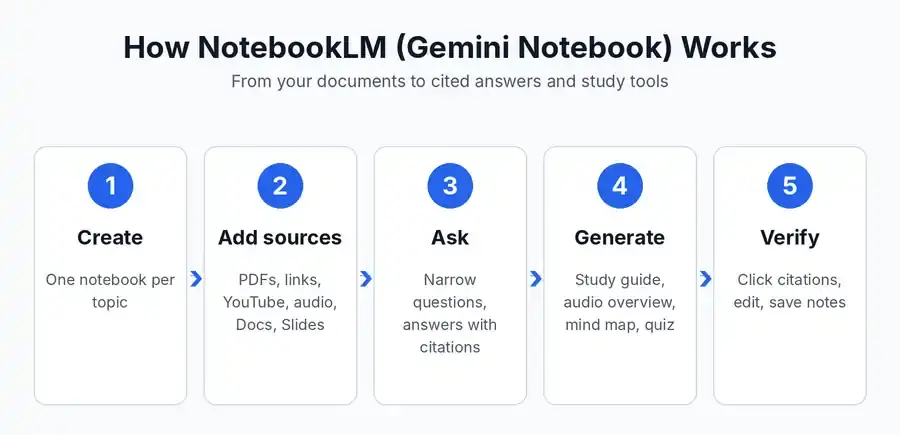
Create a notebook, upload or link your sources (PDFs, websites, YouTube videos, audio files, Google Docs or Google Slides), then ask questions in the chat. Answers come with citations that point back to the exact passage in your sources. You can then generate study guides, audio overviews, mind maps, flashcards and quizzes from the same material. Google describes the product as an AI research tool and thinking partner that can analyze your sources.
NotebookLM vs Gemini Notebook: Same Tool, New Name
According to a September 2026 pricing breakdown, Google renamed NotebookLM to Gemini Notebook on July 16, 2026, and describes it as the same standalone product. Google’s own help center now uses the Gemini Notebook name, and the old notebooklm.google address redirects to notebook.google. You will still see “NotebookLM” in many tutorials, so this article uses both names.
What You Need Before You Start
- A Google account (personal accounts work on the free plan)
- A browser in a country where the product is available. Check availability for your location, since Google lists supported countries and territories.
- Your source material: lecture notes, research papers, reports, article links or recordings
- Workspace or school accounts may need an administrator to switch access on
How to Use NotebookLM: Step-by-Step
Step 1: Create a notebook for one topic
Open the app and create a new notebook. Keep each notebook focused on a single subject, such as one course, one thesis chapter or one client project. Mixing unrelated material makes answers vaguer.
Step 2: Add your sources
Gemini Notebook now supports far more than PDFs and web links. You can add PDFs, websites, public YouTube videos, audio files, Google Docs, Google Slides, Google Sheets, Microsoft Word files, PowerPoint files, CSV, TXT, Markdown, ePub, images, pasted text, eligible Google Play Books and Gemini chats. Google currently allows up to 500,000 words or 200MB per uploaded source, with separate limits for some source types. Free accounts can add up to 50 sources per notebook.
Step 3: Organize and check your sources
Once your sources load, Gemini Notebook generates a source guide and suggested questions. With five or more sources, it can also automatically label and categorize them by topic. Check that important files imported correctly before asking questions, and select only the sources you want used when you need a narrower answer.
Step 4: Ask specific questions in chat
Ask narrow questions and click the citations to verify each claim. Good examples: “List the three main arguments in source 2 and quote the sentence that supports each” or “Where do my sources disagree about the cause of this problem?” Vague prompts like “summarize everything” give shallow results.
Step 5: Generate outputs in the Studio panel
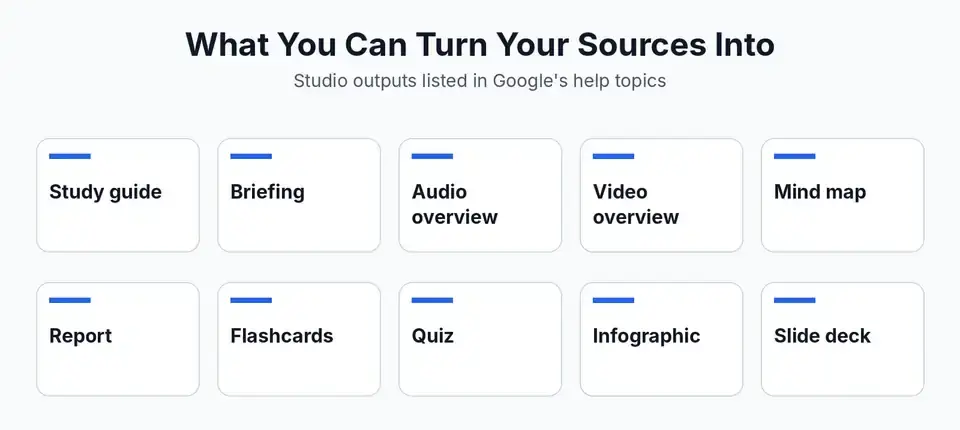
The Studio panel can create Audio Overviews, Video Overviews, reports, flashcards, quizzes, mind maps, infographics and slide decks. Some notebooks may automatically generate a starter artifact when sources are first added. For studying, start with a report or overview, then create flashcards and a quiz. For research, use reports, data tables and slide decks to structure the material before writing.
Step 6: Check, edit and save
Treat every output as a draft. Open the cited passages, correct anything that looks off, and save useful answers as notes inside the notebook so you can build on them later.
How to Use NotebookLM for Studying
For exam preparation, upload lecture slides, textbook chapters and past papers into one notebook. Ask for a glossary of key terms, a one-page summary per chapter, then a quiz. An audio overview, which turns your sources into a spoken discussion, is handy for revision while commuting.
How to Use NotebookLM for Research and Writing
Load papers, reports and article links, then ask the tool to compare methods, list limitations, or build a table of claims with citations. Gemini Notebook can also discover sources using Fast Research from the web or Google Drive, and it supports Deep Research for more involved source gathering. After those sources are added to the notebook, the standalone Gemini Notebook chat remains grounded in the notebook sources. Ask it to flag gaps, then open the citations and read the original passages yourself.
Prompts That Work Well
- Compare: “Compare source 1 and source 3 on [topic] in a table with columns for claim, evidence and limitation.”
- Teach: “Explain [concept] as if I am a first-year student, using only my sources, then give me three check questions.”
- Challenge: “What is the strongest counterargument to the thesis in source 2, according to my other sources?”
- Plan: “Turn these sources into a 7-day revision schedule with daily topics.”
For the general craft of writing instructions that AI follows, our guide to writing AI video prompts shows the same specific-over-vague principle at work.
Gemini Notebook Free vs Paid Limits
Google now uses two layers of limits. First, each plan has published maximum quotas such as notebooks, sources, chats and Audio Overviews. Second, since September 2, 2026, Gemini Notebook also uses compute-based AI limits that depend on prompt complexity, model choice, chat length and the feature you use. That means you can sometimes hit your AI usage limit before reaching a published daily quota. Google says the compute allowance refreshes every five hours until the weekly limit is reached.
| Plan | Price (USD | AED) | Notebooks | Sources per notebook | Chats per day | Audio overviews per day |
|---|---|---|---|---|---|
| Standard (free) | $0 | AED 0 | 100 | 50 | 50 | 3 |
| Google AI Plus | $4.99 | AED 18 | 200 | 100 | 200 | 6 |
| Google AI Pro | $19.99 | AED 73 | 500 | 300 | 500 | 20 |
| Google AI Ultra | $99.99 or $199.99 | AED 367 or AED 734 | 500 | 500 to 600 | 2,500 to 5,000 | 100 to 200 |
Important: the table above shows Google’s published plan ceilings, but actual AI availability can be lower because of the compute-based meter. You can check remaining usage from Settings > Usage on the web. Google also offers a Generate later option on the web when you have temporarily run out of AI usage. Plan prices and regional availability can change, so confirm the current Google AI subscription price before upgrading.
Who Should Upgrade and Who Should Stay Free
Stay on the free plan if you mainly use a few notebooks for study, reading and light research. Upgrade when you repeatedly hit source limits or the AI usage meter, need larger source libraries, generate many Studio artifacts, or want higher-priority access. Paid tiers also increase notebook and source caps, while Google AI Pro and Ultra provide substantially more AI usage than Standard.
New in 2026: Gemini Apps, AI Mode and Code Execution
Gemini Notebook is no longer isolated from Google’s wider AI ecosystem. Your notebooks can sync with the Gemini app, and notebooks can also appear in AI Mode in Google Search in supported regions. There is an important difference: the standalone Gemini Notebook chat is grounded exclusively in your notebook sources, while Gemini Apps and AI Mode may combine your notebook context with web search or other tools.
Google has also introduced a secure cloud computer for notebooks that can write and execute code for deeper data analysis. Availability depends on plan and account type, with higher-tier Google AI and Workspace access receiving these capabilities first.
Privacy: What Happens to Your Documents?
Google states that your data is not used to train Gemini Notebook unless you submit feedback, in which case Google may check the full context of that interaction. For Workspace and Workspace for Education users, uploads, queries and responses are not checked by human testers and are not used to train AI models. Still, avoid uploading confidential contracts or personal data unless your organization allows it. For another privacy walkthrough, see our guide to turning off ChatGPT ad tracking.
Common Mistakes to Avoid
- Putting unrelated topics in one notebook
- Trusting summaries without clicking the citations
- Uploading copy-protected PDFs that cannot import
- Expecting answers beyond your sources, since the tool is built to stay inside them
- Submitting AI-generated text as your own work when your school or employer forbids it. See our roundup of AI content detectors and their limits.
Alternatives to NotebookLM
If you want a general assistant rather than a source-grounded one, a chatbot with file uploads can summarize documents, but it may mix in outside knowledge. If you want something that acts on your behalf, read what an AI agent is and how it works. For turning notes into narration, see our best AI voice generators picks.
FAQs
Is NotebookLM free to use?
Yes. The Standard plan is free with any Google account, with limits of 100 notebooks and 50 sources per notebook according to Google’s help center.
Is NotebookLM the same as Gemini Notebook?
Yes. Google renamed it and calls it the same standalone product.
Can NotebookLM read YouTube videos and audio files?
Yes. Supported source types include PDFs, websites, YouTube videos, audio files, Google Docs and Google Slides.
Does NotebookLM train on my documents?
Google says your data is not used to train the model unless you provide feedback.
How many sources can I add to a notebook?
50 on the free plan, 100 on Plus, 300 on Pro, and 500 to 600 on Ultra.
Can I use it in the UAE?
Availability depends on Google’s list of supported countries and territories, so check the app in your browser with your Google account.












Leave a Comment