
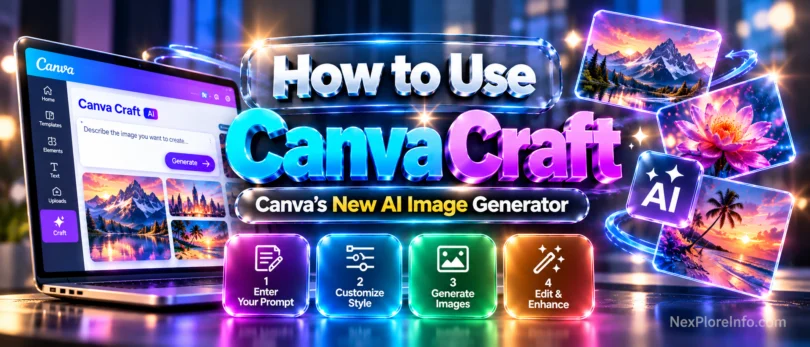
Canva just shipped its own AI image model, and it works differently from the generators most of us have been using. It’s called Canva Craft, it lives inside Dream Lab, and it was built for posters, social posts, menus and infographics rather than pretty pictures with garbled text on top.
If you’ve ever asked an AI tool for a flyer and got back a headline that reads like a typo contest, this one is worth a look. Below you’ll find where Canva Craft sits in the app, how to write prompts it actually follows, how to turn the result into an editable design, and what the free plan gets you. No design background needed.
In this article 12 sections
- How to Use Canva Craft in Dream Lab: Quick Start
- What is Canva Craft?
- Before you start: is Canva Craft free?
- How to Use Canva Craft Step by Step (Beginner Tutorial)
- How to write better Canva Craft prompts
- How to use Magic Layers in Canva on a Craft image
- Why Canva Craft handles text better than older generators
- Canva Craft vs other AI image generators
- Can’t find Canva Craft? Common problems and fixes
- Canva Craft pros and cons
- Frequently Asked Questions About Canva Craft
- Final thoughts
How to Use Canva Craft in Dream Lab: Quick Start
If you’re looking for how to use Canva for beginners, Craft is a good place to start with AI-generated images. You don’t need to build a poster from individual shapes: describe what you want, choose an image and refine it in the Canva editor. This is a focused Canva Craft tutorial, not a guide to every Canva feature.
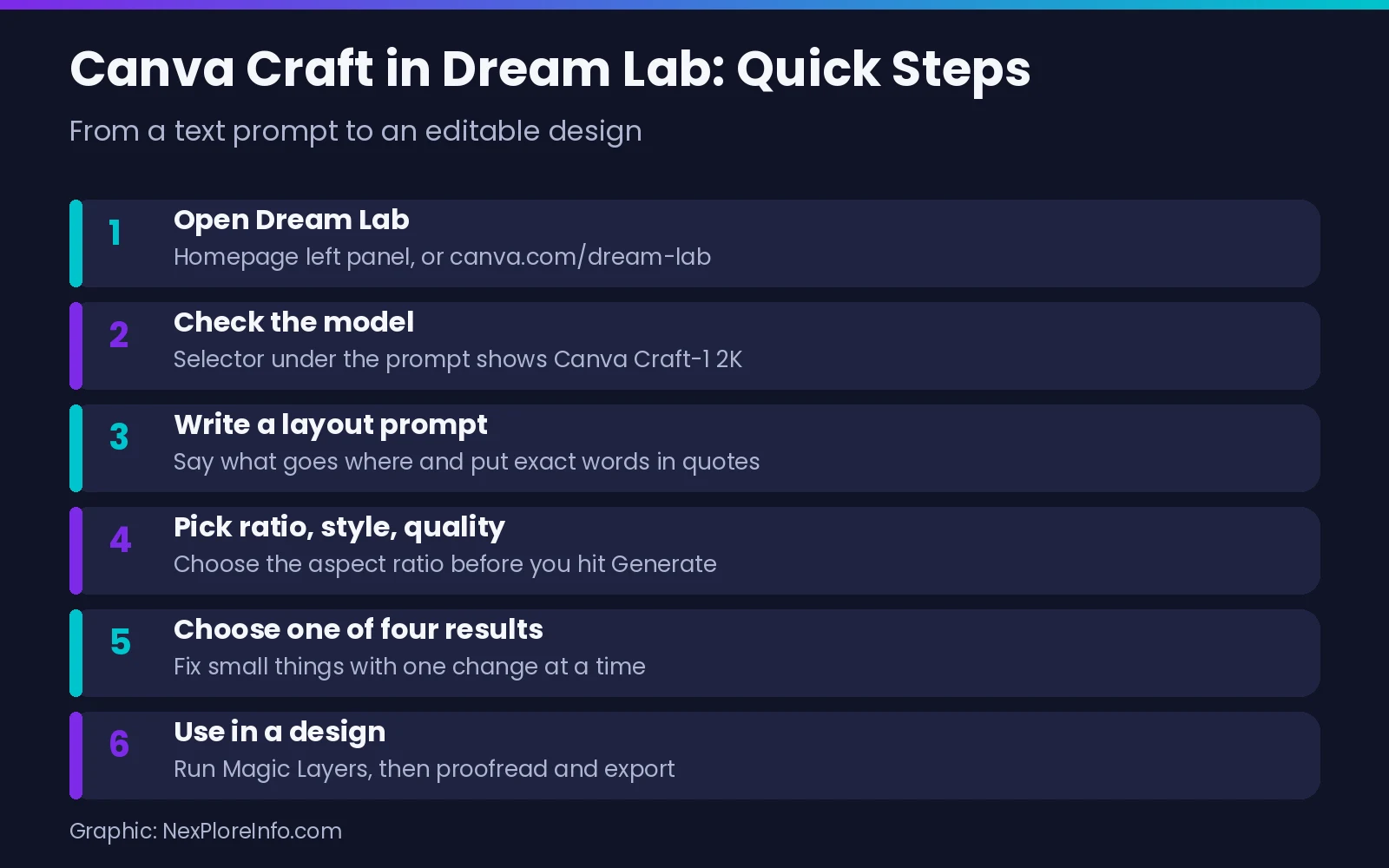
Sign in to Canva, open Dream Lab from the bottom of the left panel on the homepage (or go to canva.com/dream-lab), and check that the model selector under the prompt box shows Canva Craft. Type a prompt that says what goes where, including the exact words you want, pick an aspect ratio, then hit Generate. Choose the best of the results and open it in a design, where Magic Layers can split it into editable text and objects.
What is Canva Craft?
Canva Craft is the first image generation model Canva built and trained itself. It came out of Canva Research, the company’s in-house AI lab, and it was released on October 22, 2026. TechCrunch reported that researchers who joined Canva through its 2024 Leonardo.ai deal also worked on it.
Here’s the part that makes it a “design-first” model. Most image generators learn mainly from photographs. According to Canva’s own announcement, Craft’s training leaned heavily on millions of human-made templates from the Canva library: posters, presentations, social posts, menus, infographics and text-heavy layouts. Templates teach things a photo can’t, like how a headline relates to body copy and how much space a margin needs.
Key specs from Canva:
- Images up to 2K resolution
- More than 30 aspect ratios supported by the model
- Prompts in any language, with text rendered in 55 languages
- Available to all Canva users, worldwide, plus developers through the public API
On DesignArena, a crowdsourced leaderboard where people vote on AI design output, Craft debuted as the fourth-ranked image model overall. Canva also says it took first place in the People and Portraits and the Landscapes and Nature categories.
Before you start: is Canva Craft free?
Yes, you can use Canva Craft on a free account. Each generation draws from the AI allowance that comes with your Canva plan.
Canva’s pricing page lists Canva Free at up to 20 Standard or Premium AI uses, Canva Pro at 10 times more AI than Free, and Canva Business at 20 times more.
Here’s what you need:
- A Canva account you’re signed in to (Free, Pro, Business, Education or Enterprise)
- A desktop browser works best, though the mobile app works too
- Your exact copy ready: headline, dates, prices, call to action
- For team, school or company accounts, Dream Lab switched on by your admin
How to Use Canva Craft Step by Step (Beginner Tutorial)
This how to use Canva step by step walkthrough focuses on creating an image with Craft. Start with a small project such as a social post or event flyer, so you can check the layout and text before moving on to a more complicated design.
1. Open Dream Lab from the homepage
Go to your Canva homepage and look at the bottom of the left panel for Dream Lab. If you don’t see it, select More and then Dream Lab, or type canva.com/dream-lab into your browser.
2. Confirm Canva Craft is the selected model
Under the prompt box there’s a model selector. In current accounts it reads Canva Craft-1 2K. If you see a different model name, open the selector and switch it.
3. Write a prompt that describes the layout
This is where Craft is different. Because it plans the composition before it draws, you get better results when you tell it the plan. Mention what the design is, where each element sits, what’s biggest, and the exact words to print. Put the words in quotes.
For example: Instagram post for a bakery called “Sunrise Crumbs”. Headline at the top: “WEEKEND BAKE SALE”. Below it, a large photo of fresh croissants on a wooden table. Bottom strip with “Saturday 9 AM to 2 PM”. Warm orange and cream colors, bold sans serif headline, plenty of empty space, no extra text.
That last line matters. Early hands-on tests from designers found Craft sometimes adds its own filler copy, like taglines or even made-up opening hours, because templates are full of those details. Asking for “no extra text” cuts down on it.
4. Pick the aspect ratio, style and quality
Choose the aspect ratio before you generate. The model supports dozens of sizes, though the Dream Lab menu may show a shorter list such as 16:9, 9:16, 1:1, 4:3 and 3:4. If you need an exact size like 4:5 for an Instagram feed post, generate the closest option and resize later in the editor.
You’ll also see a style menu (presets such as Cinematic, Illustration, 3D Render and Minimalist) and an AI quality setting. Canva’s Dream Lab help page explains that higher quality tiers produce better results but use more of your allowance and can take longer.
5. Generate and pick your favorite
Select Generate. Craft takes a little longer than some instant generators because of the planning step, and it usually returns four variations. Read every word before you go further.
6. Make small fixes with one change at a time
Click a result to open it, then use the edit box to ask for a single change: “remove the line at the bottom” or “make the background darker”. Each edit re-renders the whole image, so recheck small details like a logo afterward.
7. Send it to a design and edit with Magic Layers
Once you’re happy, use the option to add the image to a new or existing design. Inside the editor, select a supported PNG or JPG image and, if Magic Layers is available on your account, look under Edit for Magic Layers. Canva introduced Magic Layers in a regional beta, so the option may not be available everywhere. When Magic Layers is available for your image, it can turn parts of a flat image into editable elements, including some text and objects. The result may still need manual cleanup, and not every detail is guaranteed to become a separate layer. Then resize, add your logo, and export.
How to write better Canva Craft prompts
Good Craft prompts read like a creative brief. If you’re new to prompting in general, our guide on how to write AI prompts with a simple framework covers the basics. For Craft specifically, these habits help:
- Name the format first. “Event poster”, “YouTube thumbnail” or “restaurant menu” tells it which layout to reach for.
- Use labels for copy. Write “Headline:”, “Subhead:” and “Button:” followed by the exact text in quotes.
- Describe position and size. Words like “top left”, “centered” and “small footer” give it something concrete.
- Keep text short. Big headlines render cleanly. Tiny fine print is where mistakes creep in.
- Give colors and type style. “Navy and coral, clean sans serif” works better than “make it pop”.
Two prompt ideas you can adapt today:
- Square social post for a gym. Headline: “NEW YEAR, NEW YOU”. Athlete tying shoes on the right, text on the left, black and neon green, bold condensed font, no extra text.
- Vertical infographic titled “How to Save Phone Battery” with four numbered tips and simple icons, white background, blue accents, large readable text.
How to use Magic Layers in Canva on a Craft image
This is why designers are paying attention. A normal AI image is one flat layer, so a wrong date means regenerating and hoping. Canva says Craft builds each picture from separate elements, which makes it a better match for Magic Layers than other generators.
When Magic Layers successfully recognizes the elements, you can work with the extracted text and objects inside your Canva design. Check the result carefully: complex artwork, fine text or overlapping elements may not separate cleanly. Change a price, swap the font for your brand font, move the logo. Thin dividers can get lost, so expect a quick cleanup pass.
How to view and show layers in Canva
To see every separated piece at once, click Position on the toolbar and open the Layers tab. From there you can select, reorder or delete individual layers, which is much easier than clicking around a busy design. In the mobile app, tap the page and choose Layers. Keep in mind this feature also draws from your monthly AI allowance.
For details that must be exact, like a phone number or event address, leave space in the prompt and type them into normal text boxes afterward.
Why Canva Craft handles text better than older generators
The secret is the two-stage setup. Canva explains that the first stage is a planning model. It reads your prompt and writes out a detailed plan: which elements appear, how they relate in space, their relative size, the visual hierarchy, and every piece of text. The second stage is a separate rendering model that turns that plan into the finished image.
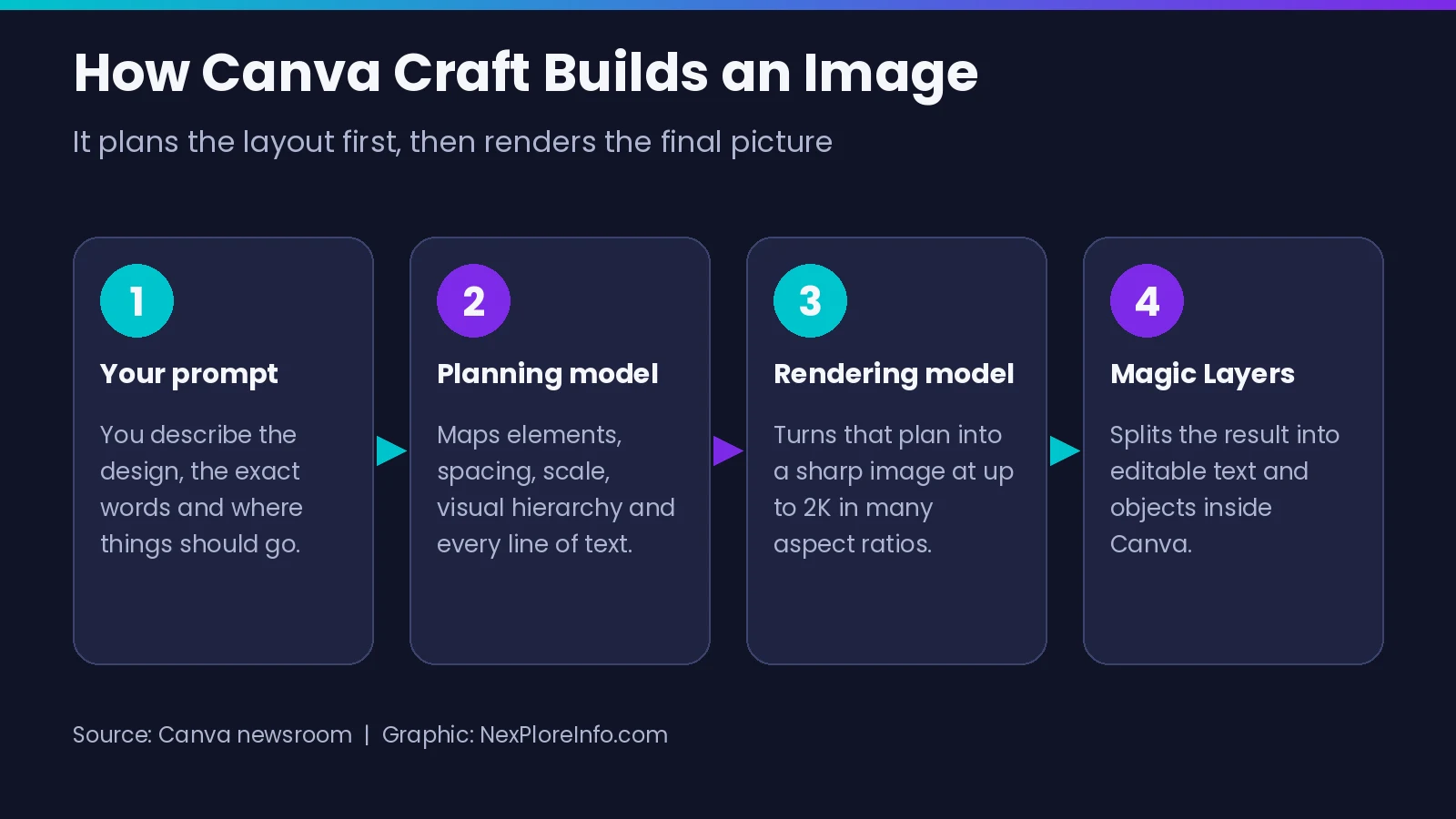
Older generators do all of that in one pass, which is why headlines often melt into nonsense. By deciding where the words go before drawing a single letter, Craft gets cleaner type and tidier layouts.
Canva Craft vs other AI image generators
Craft shines at marketing-style graphics with text: posters, menus, carousels, thumbnails and slides. Tools like ChatGPT’s image generator, Google’s Gemini models or Midjourney may still suit you better for pure art, surreal concepts or highly stylized illustration. We compare the main options in our roundup of the best AI image generators, free and paid.
Craft’s biggest advantage is location. The image lands next to your templates and Brand Kit, ready to edit, instead of arriving as a flat file you rebuild elsewhere.
Can’t find Canva Craft? Common problems and fixes
| Problem | What to try |
|---|---|
| No Dream Lab on the homepage | Select More, or open canva.com/dream-lab. On team or school accounts, ask your admin, since Dream Lab can be turned off. |
| A different model is selected | Open the selector under the prompt box and choose Canva Craft. |
| Headline is misspelled | Shorten it, put it in quotes, regenerate once. Still wrong? Generate without text and add the headline in Canva. |
| Extra words you didn’t ask for | Add “no extra text” to the prompt, or delete them once the layers are split. |
| Wrong size for your platform | Pick the closest ratio, then resize in the editor. |
| Generations are paused or slow | You may have hit your monthly AI allowance. Lower the quality tier or wait for the reset. |
Canva Craft pros and cons
Pros
- Readable text. Short headlines and labels usually come out clean, in 55 languages.
- Several layouts per prompt. Four variations give you a quick round of ideas.
- Editable results. Where Magic Layers is available, the image splits into text and objects you can change.
- Free to try. It runs on the AI allowance every Canva plan already includes.
Cons
- 2K is the ceiling. Great for social media and screens. Large print jobs may need an upscale.
- Proofread everything. Dates, prices, URLs and names still need human eyes.
- Brand fonts come later. Describe colors in the prompt and add your exact fonts once the layers are split.
- Rights and likeness. Don’t use generated images that mimic real brands, logos or people you don’t have permission to use. Canva’s help pages cover commercial use of Dream Lab content.
Frequently Asked Questions About Canva Craft
Can beginners use Canva Craft without design experience?
Yes. If you’re learning how to use Canva for design, Dream Lab gives you a simple way to experiment with layouts before you learn every editing tool. Describe the subject, the words you want on the image and where they should go. You can then open a result in Canva and make the final adjustments yourself.
Is Canva Craft free to use?
Yes. Canva Craft is available to every Canva user, including free accounts. Free plans get a limited monthly AI allowance (up to 20 Standard or Premium uses), while Pro and Business plans get much more.
Is Canva Pro worth it for Canva Craft?
Not just to try it. Free accounts can use Craft with a smaller monthly AI allowance. If you create social graphics every week, though, Pro’s 10 times larger allowance is where the upgrade starts to pay off.
How do I edit text in a Canva Craft image?
Add the image to a design, select it, and use Magic Layers under Edit. It separates the text and objects into editable layers you can change like a normal template.
What is the difference between Dream Lab and Canva Craft?
Dream Lab is the place in Canva where you type prompts and get images. Canva Craft is the AI model doing the work behind it.
Final thoughts
Canva Craft is the most practical AI image tool Canva has offered so far, mainly because it understands layouts and words instead of just pixels. Use it for first drafts and quick social graphics, keep your prompts specific, and let the layer tools handle edits. Just proofread like a client is watching, because sooner or later one will be.
Want more help with AI design tools? Our walkthrough of Claude Docs, Slides and Design shows another way to turn prompts into finished visuals.





Leave a Comment